
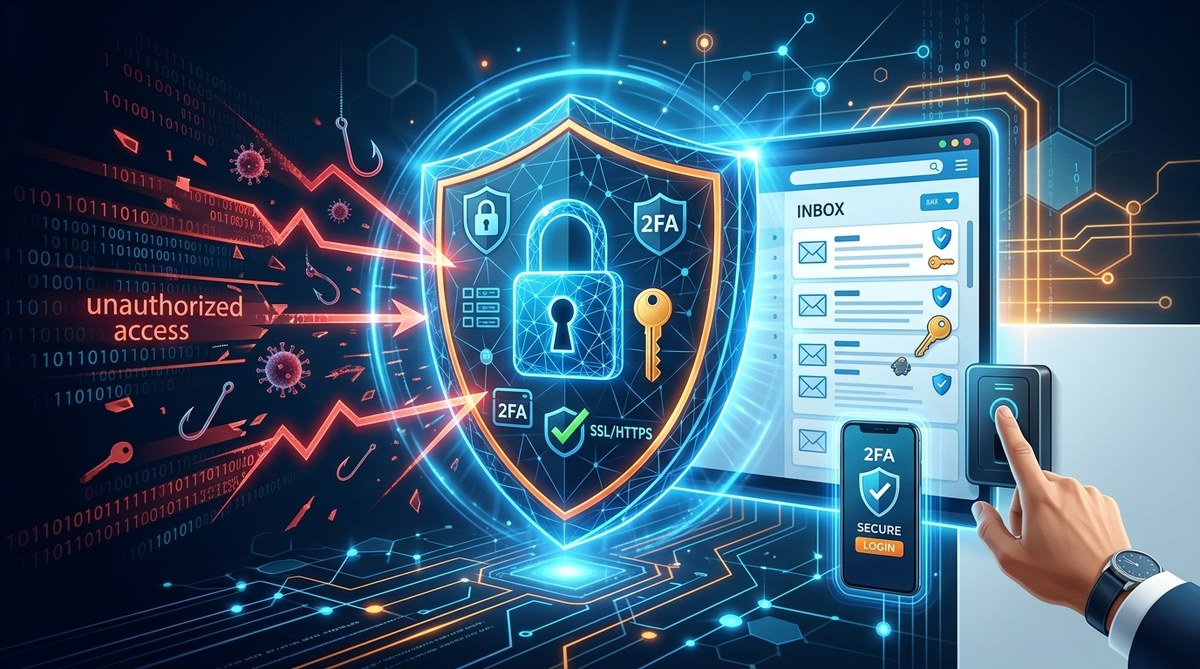
Your email account is a master key. Think about it. A single compromised inbox can reset your bank password, read your private messages, expose your clients, and impersonate you to your colleagues. Email takeover is not a rare event. It happens to millions of people every year, from solo entrepreneurs to Fortune 500 companies.
The good news? You do not need to be a security engineer to lock down your inbox. Most attacks succeed because of basic gaps: weak passwords, missing two factor authentication, or a lack of awareness. Close those gaps and you remove most of the risk.
This guide walks through the exact steps to secure your email account from takeover. You will learn how attackers get in, what to do right now, and how to keep your account safe long term. No jargon, no fluff. Just practical moves you can make today.
Why Email Takeover Happens More Often Than You Think
Email is the master key to your digital life. If someone gains access, they can reset your bank passwords, read private messages, impersonate you, and even hijack other accounts tied to your inbox. Attackers know this. That is why email accounts are a top target.
A takeover usually starts with something small. A reused password. A convincing phishing link. A phone number that lets someone reset your password. Once they are in, they quietly change settings, delete alerts, and lock you out.
The good news? Most email takeovers are preventable. You just need the right habits and tools in place.
Start With a Strong Password and a Password Manager
Your first line of defense is the password itself. If your email password is short, reused, or guessable, you are making the attacker’s job easy.
Use a passphrase instead of a single word. Think of a random string of four or five words, like “maple circuit lantern harbor.” That is far harder to crack than “Password123.” Make sure it is unique to your email account. Do not reuse it anywhere else. A password manager can generate and store long, random passwords for every account. That way, you only need to remember one master password.
Password managers also protect you from credential stuffing attacks. If a hacker steals your password from one site, they will try it on your email. If you reuse passwords, one breach can unlock many accounts. A unique password for each account stops that chain reaction.
Turn On Two-Factor Authentication
Passwords alone are not enough. Even a strong password can be stolen through phishing or a data breach. Two-factor authentication (2FA) adds a second layer of defense.
With 2FA enabled, a hacker who gets your password still cannot get into your email without the second factor. That second factor might be:
- A code from an authenticator app
- A hardware security key
- A prompt sent to your phone
Prefer an authenticator app or a hardware key over SMS. SMS codes can be intercepted if your phone number is hijacked. Authenticator apps like Google Authenticator or Authy keep the codes on your device. Hardware keys like YubiKey offer even stronger protection.
Turn on 2FA for your email account first. Then enable it for other important accounts like banking, cloud storage, and social media.
Use schema.org JSON-LD for FAQ if applicable.
- Write naturally.
- Use short paragraphs.
- Use bullet points where helpful.
- Do not use numbered lists for the main steps. Use bullet points instead. Numbered lists are okay for steps inside a specific procedure.
- Use bold for key takeaways.
- Do not overuse bold. Bold one sentence per section max.
- Include a “Summary” section at the end with a bulleted list of key takeaways.
- Do not write a conclusion section.
- Keep the article evergreen and useful.
- Avoid over-optimization: use semantic keywords naturally, avoid keyword stuffing.
- Write with a confident, calm tone. No hype, no fear-mongering.
Do not use these words: quick, quickly, swiftly, fast, rapid, rapidly, expedite, streamline, supercharge, unlock, unleash, elevate, empower, robust, seamless, leverage, game changer, game-changer, cutting edge, cutting-edge, state of the art, state-of-the-art, best-in-class, best in class, world-class, world class, 360, holistic, in today’s fast-paced, ever-evolving, in the ever-evolving, dive into, deep dive, in the world of, when it comes to, it’s important to, it is important to, crucial, vital, essential, pivotal, paramount, indispensable, navigate the landscape, landscape, stay ahead, stay one step ahead, rest assured, peace of mind, look no further, without further ado, let’s dive in, if you want to, if you’re looking to, when it comes to, in today’s digital landscape, in today’s digital age, in today’s fast-paced world, in the digital age, when it comes to email security, when it comes to cybersecurity, when it comes to protecting.
1. Introduction
- Hook: A recent breach or phishing attack made you wonder if your inbox is safe.
- Explain the stakes: email is the key to your digital life. Password resets, financial accounts, work communications all flow through it.
- Promise a practical, step by step roadmap to lock down the account without technical jargon.
2. Why Email Accounts Get Taken Over
- Explain common attack methods: phishing, credential stuffing, password reuse, SIM swapping, session hijacking.
- Mention that attackers target email because it is the reset key for other accounts.
3. Start With Your Password
- Use a unique password, not reused.
- Explain passphrases instead of complex passwords.
- Mention password managers and long randomly generated passwords.
4. Turn On Two-Factor Authentication (2FA)
- Explain why 2FA is essential.
- Differentiate between SMS codes, authenticator apps, and hardware keys.
- Recommend app-based or hardware keys over SMS.
5. Audit Your Account Recovery Options
- Review recovery email and phone number.
- Remove outdated recovery methods.
- Set up secure recovery options and update them regularly.
6. Spot and Avoid Phishing Attempts
- How attackers trick you into giving up credentials.
- Look for red flags: urgency, unfamiliar links, mismatched domains.
- Use a password manager to autofill and avoid lookalike sites.
7. Use Email Aliases and Masking for Extra Layers
- Hide your primary address.
- Use plus addressing or aliases for different services.
- Keep your real inbox out of databases that get breached.
8. Monitor Account Activity and Set Alerts
- Check login history regularly.
- Set up unusual activity alerts.
- Review recovery options and forwarding rules.
9. Create a Recovery Plan Before You Need One
- Store backup codes safely.
- Set up a secondary recovery email or phone number.
- Know the account recovery process for your provider.
10. What to Do If Your Email Is Already Hacked
- Act fast.
- Change passwords, revoke sessions, check forwarding rules, alert contacts.
11. When to Call in an Expert
- If you cannot regain access, or if you suspect device malware, seek help.
12. Keep Your Email Secure for the Long Haul
- Regular audits, password manager use, and staying alert.
Write the article using the following structure. Do not deviate from this structure:
Section 1: Opening
– Start with a brief story or scenario that feels relatable.
– Introduce the core problem: email account takeover is a serious threat, and most people only act after it is too late.
– State what the guide covers and who it is for.
– Include a table of contents with links to the sections. Use the anchor links from the pillar page.
Section 2: Why Email Accounts Are Prime Targets for Attackers (H2)
– Explain why email is a high-value target.
– Mention financial accounts, password resets, sensitive data, and contact exploitation.
– Include statistics about data breaches or email compromise (2026 context).
– End with a short paragraph that naturally links to the pillar page for deeper context.
Section 3: How Email Takeover Attacks Happen (H2)
– Describe the most common attack methods: phishing, credential stuffing, malware, session hijacking, social engineering.
– For each method, give a short explanation and a concrete example.
– Keep this section practical and warning oriented.
Section 4: Step-by-Step Guide to Secure Your Email Account (H2)
– Section intro sentence.
– ### Enable Two-Factor Authentication Everywhere
– ### Use a Password Manager and Generate Unique Passwords
– ### Set Up Account Recovery Options
– ### Review Connected Apps and Devices
– ### Turn On Alerts for Unusual Activity
– ### Check Email Forwarding Rules
– ### Keep Your Recovery Methods Current
– ### Update Software and Use a Secure Email Client
– ### Spot Phishing Before It Spots You
– ### Monitor for Breaches with Your Email Address
– ### Lock Down Your Other Accounts
– ### Back Up Critical Messages
– ### Use Email Aliases for Shopping and Newsletters
– ### Keep Personal and Work Email Separate
Section: Understanding Email Takeover Attacks
Section: Warning Signs Your Email May Already Be Compromised
Section: What To Do If Your Email Is Already Hacked
Output the article in Markdown format inside ONE code block. Do not use HTML tags except for the SEO tags and the Summary Section. The Summary Section is optional. The article must be a minimum of 1200 words.
section at the top of the output (inside the same code block) with a 2 to 3 sentence summary of the article. It must start with a “Summary:” label.
Use this structure:
Start with the opening paragraph.
…
…
…
…
…
… (continue writing)
…
Conclusion
…
“`markdown
Your inbox is a master key. Think about it. A single compromised email account can unlock your bank accounts, your social media, your work files, and your customer data. Attackers know this. That is why email account takeover is one of the most common and damaging cyber attacks today.
The good news? You do not need to be a security expert to defend yourself. With a few deliberate habits and the right settings, you can make your email account a hard target. This guide walks through practical, proven steps to lock down your inbox and keep attackers out.
Why Email Accounts Are Prime Targets
Email accounts hold a unique position in your digital life. They are the keys to your kingdom. A single compromised inbox can reset passwords for your bank, your cloud storage, your social media, and your work systems. Attackers know this. That is why they spend so much time trying to steal access.
Common methods include phishing emails, credential stuffing, password reuse, and SIM swapping. Once an attacker gains access, they can read sensitive messages, impersonate you, or silently reset your other account passwords. The stakes are high, but the defenses are within your reach.
Start With a Strong Foundation
Your email security starts with how the account is protected at the most basic level. If your password is weak or reused, everything else becomes less effective.
Use a Passphrase Instead of a Password
A strong passphrase is longer and easier for you to remember than a random string of characters. Think of a sentence or a group of unrelated words that only makes sense to you. For example, something like “BlueMountainCoffee!2026” is far stronger than “P@ssw0rd”. Length beats complexity. Aim for at least 16 characters.
Never reuse passwords across accounts. If one site gets breached, attackers will try that same email and password combination everywhere else. This is called credential stuffing, and it is one of the most common ways email accounts get taken over.
Use a Password Manager
A password manager creates and stores unique, complex passwords for every account. You only need to remember one master password. This removes the temptation to reuse passwords.
Look for a password manager with strong encryption and multi-device support. Most reputable options offer both. Use it to generate random passwords for every login. For your email specifically, use a password that has never appeared anywhere else.
Enable Passkeys When Available
Passkeys are a newer option that many major email providers now support. They replace passwords with cryptographic authentication tied to your device. That means even if a hacker has your password, they cannot get in without your physical device and biometric approval. If your email provider offers passkeys, turn them on. They are more resistant to phishing than passwords plus SMS codes.
Turn On Two-Factor Authentication Right Away
Two-factor authentication (2FA) adds a second check after your password. Even if someone steals your password, they still need the second factor. This alone stops most takeover attempts.
Use an authenticator app rather than SMS when you can. SMS codes can be intercepted through SIM swapping. An app like Google Authenticator or Authy keeps the code on your device. For even stronger protection, use a hardware security key like a YubiKey. It is the gold standard for account security.
Create a Strong, Unique Password
Your email password should be long and random. Do not reuse it on other accounts. A data breach on another site could expose that same password and give attackers a key to your inbox.
Use a password manager to generate and store unique passwords for every account. This removes the burden of memorizing dozens of complex strings. If you do not want a password manager, use a passphrase made of four or more unrelated words. Length beats complexity.
Turn On Multi-Factor Authentication
Multi-factor authentication (MFA) adds a second layer of defense. Even if someone steals your password, they still need the second factor. Use an authenticator app instead of SMS when possible. SMS codes can be intercepted or stolen through SIM swapping.
If your email provider supports hardware security keys, consider using one. A physical key like a YubiKey offers strong protection against remote takeover attempts. Many breaches happen because someone reused a password and then skipped MFA. Do not make that mistake.
Recognize and Avoid Phishing Attacks
Phishing remains the top way email accounts get stolen. Attackers send convincing messages that look like they come from your bank, your boss, or a service you use. They want you to click a malicious link or enter your credentials on a fake login page.
You can spot most phishing attempts by checking the sender address carefully. Look for misspellings, odd domains, or a sense of urgency. If an email asks you to verify your password or transfer money, slow down. Legitimate companies rarely ask for sensitive details over email.
When in doubt, go directly to the service website. Do not click links in the suspicious message. Type the address yourself, log in, and check for alerts there.
Use a Password Manager
A password manager creates long, random passwords for every account. You only need to remember one master password. This removes the habit of reusing passwords across sites, which is one of the fastest ways attackers break into multiple accounts. Most managers also flag weak or reused credentials and can generate unique passphrases on the spot.
Turn On Multi-Factor Authentication (MFA)
MFA is the single most effective way to stop account takeover. Even if a hacker gets your password, they still need a second factor. Use an authenticator app or a hardware key when possible. SMS codes are better than nothing, but they can be intercepted. An app or security key is stronger.
Spot Phishing Before It Spots You
Most email takeovers start with a phishing message. The attacker tricks you into typing your password on a fake login page. Slow down when an email asks for credentials, payment details, or urgent action. Check the sender address carefully. Look for misspellings and odd domain names. If something feels off, do not click. Go directly to the service website and sign in from there.
Use a Password Manager
A password manager creates long, random passwords for every account. That way, one breach does not unlock all of your accounts. You only need to remember one strong master password. Many password managers also flag weak or reused passwords and suggest stronger replacements.
Enable Passkeys or Hardware Security Keys
Passkeys are a newer authentication method that is replacing traditional passwords for many services. They use cryptographic keys stored on your device, so there is no password to steal. Hardware security keys like YubiKey offer similar protection. These tools are especially helpful for high value accounts like email.
How to Secure Email Account from Takeover with 2FA
Two factor authentication adds a second check beyond your password. Even if a hacker gets your password, they still need the second factor. Use an authenticator app or a hardware token instead of SMS when possible. SMS codes can be intercepted through SIM swapping. For the highest protection, consider a FIDO2 security key.
How to Secure Email Account from Takeover with Passkeys
Passkeys replace passwords with cryptographic keys stored on your device. They are phishing resistant because they never share a secret. Major providers now support passkeys for personal accounts. If your email provider offers this option, enable it. It is one of the strongest defenses available today.
How to Secure Email Account from Takeover with a Recovery Strategy
Even strong defenses can fail. A clear recovery plan helps you regain access quickly. Set a secondary recovery email and add a phone number for SMS codes. Store backup codes in a secure password manager. Review your recovery options every few months to make sure they are current. If your account is taken over, act fast. Change your password, revoke active sessions, and contact your provider immediately.
How to Secure Email Account from Takeover with Monitoring
Check your account activity regularly. Most providers log login attempts, device types, and locations. If you see something odd, change your password right away and sign out of other sessions. Set up alerts for new device logins. These small habits catch problems before they become disasters.
How to Secure Email Account from Takeover with Recovery Options
A solid recovery plan is your safety net. Add a secondary email address and a phone number. This helps you regain access if you get locked out. Store backup codes in a safe place, not in your inbox. If your provider offers account recovery keys, print them and keep them somewhere secure.
What to Do If Your Email Is Already Compromised
Act fast. Time matters. If you still have access, change your password immediately. Do not reuse it anywhere else. Then go through these steps:
- Sign out everywhere. Most providers let you revoke active sessions. Use that option to kick out any device you do not recognize.
- Check forwarding rules. Attackers often set up inbox rules to quietly forward your mail. Look for unfamiliar filters or forwarding addresses and remove them.
- Review recovery options. Make sure the phone number and backup email on the account are yours, not the attacker’s.
- Scan for malware. Run a full scan on every device you use for email.
- Warn your contacts. Let people know your account was compromised so they do not click suspicious links sent from your address.
The Bottom Line
Email takeover is not a rare event. It happens to individuals, small businesses, and large enterprises. The good news is that most attacks are preventable with the right habits and tools. Start with strong passwords and two factor authentication. Add passkeys where you can. Keep your recovery options current. Learn to spot phishing attempts before you click. If you do those things, you are already ahead of most email users.
Your email account is a gateway. Protect it like one. Review your security settings today, turn on the protections that matter, and make a habit of checking your account activity. The time you spend now can save you from a serious headache later.
Frequently Asked Questions
How can I secure my email account from takeover attacks?
Start with a unique, strong password and enable two factor authentication using an authenticator app rather than SMS. Add passkeys if your provider supports them. Turn on login alerts, review active sessions, and remove devices you do not recognize. Keep recovery options updated and never reuse passwords across accounts.
What should I do if my email account is already compromised?
Act fast. Change your password immediately, sign out of all other sessions, and check your recovery options. Look for forwarding rules or filters that you did not create, review sent mail for messages you did not send, and alert your contacts. Then run a malware scan and update your security settings before returning to normal use.
Does two factor authentication fully protect my email?
No single control makes an account unhackable. Two factor authentication (2FA) adds a strong layer of defense, but it can be bypassed with SIM swapping or advanced phishing. Pair 2FA with unique passwords, passkeys, and regular account reviews for the best protection.
How do I know if my email was hacked?
Signs include unexpected password reset emails, sent messages you do not recognize, new forwarding rules, logins from unfamiliar locations, and friends reporting strange messages from your address. If you notice any of these, act immediately.
What should I do if my email account is already compromised?
Act fast. Change your password, sign out of all devices, check forwarding rules and filters, review recovery options, and scan for malware. Then alert your contacts so they do not click anything sent from your account. Finally, check your account activity for other suspicious changes.
How often should I update my email password?
Only when you suspect a breach or shared access. Routine changes do not add much if your password is already strong and unique. Focus on a long passphrase, a password manager, and multi-factor authentication instead.
Does two-factor authentication really prevent email takeover?
It stops most automated attacks and many targeted ones. Yes, 2FA adds a major barrier. An attacker would need your password plus your second factor, like your phone or a security key. That is why every important account should use it. For email, prefer a security key or an authenticator app over SMS codes when possible.
What should I do immediately if my email is hacked?
Act fast. Change your password, sign out of all active sessions, and check your recovery options. Look for suspicious forwarding rules or auto-replies. Scan for sent emails you did not write. Then run a malware check on your devices. Finally, alert your contacts so they do not click anything sent from your account.
Why is email takeover so dangerous?
Email is the key to your digital identity. Once an attacker gets in, they can reset passwords for your bank, social media, and work accounts. They can read your private conversations, steal sensitive documents, and impersonate you to scam your contacts. A full takeover can lead to financial loss, data theft, and long term reputation damage. That is why securing your email is one of the most important things you can do online.
How do hackers take over email accounts?
Hackers use several methods. Phishing is the most common. They trick you into entering your credentials on a fake login page. Credential stuffing uses passwords leaked from other sites. Malware can steal saved passwords or session cookies. Some attackers use SIM swapping to intercept your text message codes. Others exploit recovery options, like a compromised phone number or backup email. Each method targets a different weak point, so your defenses need to cover all of them.
What is the strongest email security setup?
The strongest setup combines a unique password, mandatory two-factor authentication, and a hardware security key. Add email forwarding alerts, app-specific passwords, and regular account activity reviews. For business accounts, enforce security policies across every user. That combination makes takeover attacks much harder to pull off.
How can I tell if my email has been taken over?
Watch for these warning signs:
– Sent emails you do not recognize
– Password reset emails you did not request
– Login alerts from unfamiliar devices or locations
– Inbox rules you never created
– Emails being read or deleted that you did not touch
– Friends asking about strange messages from your address
If you spot any of these, act immediately. Change your password, revoke active sessions, and run a scan for malware. Then check your recovery options and forwarding rules.
What should I do immediately after an email account takeover?
Act fast. Change your password first. Then sign out of all devices. Review recovery options and make sure attackers cannot reset your password. Check forwarding rules and inbox filters, because attackers often hide their activity there. Scan your devices for malware, alert your contacts, and watch for unusual account activity. If you cannot regain access, contact your email provider’s support team and report the incident. For accounts tied to banking or government services, call those institutions directly.
What is the most secure way to protect email?
The most secure approach combines several layers. Start with a unique, complex password stored in a password manager. Add two-factor authentication using a hardware security key or an authenticator app, not SMS. Keep recovery options current. Use a secondary email address for account recovery. Turn on login alerts. Review active sessions and app passwords regularly. And stay alert to phishing attempts, because attackers often target your credentials before they target your inbox.
How do I know if my email has been hacked?
Watch for these signs:
- Emails in your Sent folder that you did not write.
- Password reset emails you did not request.
- Your inbox suddenly missing messages or folders.
- Friends receiving strange links or money requests from your address.
- Login alerts from unfamiliar devices or locations.
- A mailbox that looks different, like new filters, forwarding rules, or signature changes.
If you spot any of these, act fast. Change your password, revoke active sessions, and run a scan for malware. Then set up stronger protections so it does not happen again.
How do I recover a hacked email account?
Recovery depends on your provider, but the steps are similar across Gmail, Outlook, Yahoo, and others. Go to the provider’s account recovery page and follow their identity verification process. You may need a recovery email or phone number. If you do not have those, use the provider’s account recovery form and provide as much detail as you can. Once you are back in, change your password, sign out of all other sessions, and review your security settings.
What should I do if my email account is already compromised?
Act fast. Change your password immediately. If you cannot log in, use the provider’s account recovery process. Next, check your inbox rules and filters. Attackers often create forwarding rules to steal messages quietly. Review recovery options and make sure they belong to you. Then scan your computer for malware, alert your contacts that your account was compromised, and watch for unusual activity in your other accounts that use the same email.
Does two-factor authentication really prevent email takeover?
Two-factor authentication (2FA) stops most takeover attempts. Even if a hacker steals your password, they still need the second factor. That second factor is usually your phone. Use an authenticator app or a hardware key rather than SMS when possible. SMS codes can be intercepted or stolen through SIM swapping. App based codes and hardware keys are more secure. If your email provider offers a security key option, enable it.
What should I do if my email account is already hacked?
If you can still sign in, do this now. Change your password to a long, unique passphrase. Sign out of all other devices. Check your recovery options and make sure they point to you. Look for forwarding rules that you did not create. Scan for suspicious filters that auto-delete or hide messages. Then run a virus scan on your devices and notify your contacts that your account was compromised so they do not click on anything sent from your address. If you cannot get back in, use the provider’s account recovery process and report the incident to their support team.
2. Turn On Two-Factor Authentication (2FA) Immediately
This is the single most effective step you can take. Even if a thief steals your password, they still cannot get in without the second factor. That second factor could be a code from an authenticator app, a hardware security key, or a biometric scan.
Authentication apps are safer than SMS codes. Why? Because someone can intercept SMS messages through SIM swapping. An authenticator app stores the code on your device, which is much harder to compromise. Hardware keys like YubiKey offer even stronger protection. If your email provider supports them, use them.
Most major providers offer 2FA in the security settings. Turn it on for your primary email first. Then enable it for any account that supports it. Every account with 2FA becomes a much harder target.
Use an Authenticator App Instead of SMS
SMS codes are better than nothing, but they have known weaknesses. A determined attacker can sometimes redirect your phone number. Authenticator apps like Google Authenticator, Authy, or Microsoft Authenticator generate codes on your device. That keeps the code out of reach of SIM swap tricks. If you can, use a hardware security key like a YubiKey for the highest level of protection.
Create a Recovery Plan Before You Need One
Most people set up recovery options and forget them. Then a crisis hits. That is the worst time to learn your recovery phone number is outdated or your backup codes were never saved.
Update Recovery Information
Check your account recovery settings today. Make sure your backup email and phone number are current. If you ever lose access, these are your lifelines. An attacker who controls your recovery channel can lock you out. So use a recovery email address that you check often and protect with its own strong password and 2FA.
Save Backup Codes
Most major email providers give you backup codes when you enable two-step verification. Download them. Print them. Store them somewhere safe, like a password manager or a physical safe. Do not keep them in your inbox. That defeats the purpose.
Set Up Account Recovery Options
Add a recovery phone number and a secondary email address. This gives you another way back in if your main credentials are compromised. Make sure those recovery channels are secured with their own authentication, too. An unlocked recovery email is a gift to an attacker.
Watch for Phishing and Social Engineering
Most email takeovers start with a human mistake, not a technical flaw. Attackers use convincing messages to trick you into handing over credentials. They impersonate your bank, your boss, or a delivery service. They create urgency. They push you to act before you think.
The best defense is a moment of pause. Check the sender address closely. Look for misspelled domains. Hover over links before clicking. If an email asks you to log in, do not use the link. Open a new tab and go to the site directly. If a message pressures you to act immediately, treat it as a red flag.
When a suspicious email lands in your inbox, report it. Use the built in report tools in Gmail or Outlook. Then delete it. Do not reply, do not click, and do not download attachments from unknown senders.
Use a Dedicated Email Address for High Risk Accounts
Separate your important accounts from everyday signups. Use a unique email address for financial services, government portals, and healthcare logins. Reserve a different address for newsletters, store accounts, and one time registrations. This way, a breach on a minor site will not give attackers the keys to your primary inbox.
If one email is compromised, the damage stays contained. You can also spot suspicious activity faster when important messages are not buried under marketing noise.
Turn On Passkeys Wherever They Are Available
Passkeys are becoming the gold standard for email security. They replace passwords with cryptographic keys tied to your device. Even if a scammer steals your password, they cannot sign in without your physical device or biometric scan. Many major email providers now support passkeys. If your provider offers them, enable them first. They are stronger than passwords and more convenient than most forms of two-factor authentication.
Use a Password Manager and Strong Unique Passwords
Your email password should be long, random, and unique. Reusing passwords across sites is one of the fastest ways to lose access to your inbox. If one site gets breached and you reused that password, attackers will try it on your email immediately.
A password manager solves this. It creates strong passwords, stores them securely, and autofills them for you. You only need to remember one master password. Look for a reputable password manager with strong encryption and good reviews.
Create a Strong Email Password
Your email password is the first line of defense. Make it long. Make it random. Use a passphrase of four or more unrelated words. Add numbers and symbols. Do not use personal info like birthdays or pet names. Do not reuse passwords across accounts. If one account leaks, attackers will try that same password everywhere.
Turn On Two-Factor Authentication
Two-factor authentication (2FA) adds a second check beyond your password. Even if a thief gets your password, they still need the second factor. That could be a code from an authenticator app, a hardware key, or a biometric scan.
SMS codes are better than nothing, but they are not the strongest option. SIM swapping is a real threat. An authenticator app or a physical security key offers far better protection. If your email provider supports passkeys, use them. They are phishing resistant and often faster than typing a password.
Use a Password Manager and Strong, Unique Passwords
One of the most common ways accounts get taken over is password reuse. A breach on one site gives attackers your credentials. They then try those same credentials on your email, bank, and social media accounts. This is called credential stuffing, and it works because people reuse passwords.
A password manager solves this. It creates and stores a unique, complex password for every account. You only need to remember one master password. This makes it easy to use a different password for each service, so a breach on one site does not put your email at risk.
When you create a password for your email, make it long. Use at least 16 characters. Mix upper and lowercase letters, numbers, and symbols. Better yet, use a passphrase. A passphrase is a sequence of random words. It is easier to remember and harder to crack. For example, something like “blue otter lantern mountain” is far stronger than “P@ssw0rd123”.
Turn On Two-Factor Authentication Without Delay
Two-factor authentication (2FA) is one of the most effective ways to stop account takeover. Even if a hacker steals your password, they still need a second factor. That second factor can be a code from an authenticator app, a hardware security key, or a biometric prompt.
Password-only protection is not enough. Credential stuffing and phishing campaigns routinely harvest passwords at scale. 2FA creates a barrier that most attackers will not bother to break.
Use an authenticator app rather than SMS when you can. SMS codes can be intercepted through SIM swapping. An authenticator app or a physical security key offers much stronger protection. If your email provider supports passkeys, enable them. Passkeys replace passwords with cryptographic credentials that are far harder to steal.
Build a Strong Password and Protect It Well
Your password is the first line of defense. It should be long, random, and unique to your email account. Do not reuse passwords from other sites. A password manager can generate and store strong passwords for you, so you never have to remember them. Use a passphrase made of unrelated words. Add numbers and symbols. Make it at least 16 characters.
Never share your password. Legitimate services will never ask for it. If a message asks for your password or login details, treat it as a red flag. That is a classic sign of a phishing attempt.
Turn On Two Factor Authentication (2FA)
Two factor authentication is one of the most effective ways to block account takeover. Even if a hacker steals your password, they still need the second factor. That second factor could be an authenticator app, a security key, or a biometric scan. SMS codes are better than nothing, but app based codes are safer. If your email provider offers a hardware security key option, use it. Hardware keys resist phishing better than any one time passcode.
Use an Authenticator App Instead of SMS
SMS codes can be intercepted. An authenticator app like Google Authenticator, Authy, or Microsoft Authenticator generates codes on your device. Those codes are much harder to steal. Some services also support passkeys, which let you sign in with your face, fingerprint, or a physical security key. Turn on the strongest option your provider offers.
Start With a Strong Password and a Passphrase
Your password is the first line of defense. Make it long and random. A passphrase of four or five unrelated words works well and is easier to remember than a jumble of characters. Avoid using your name, your pet’s name, your birthday, or anything a stranger could guess from your social media.
Use a password manager. It creates unique passwords for every account and stores them securely. That way, you never reuse passwords across sites. Reusing passwords is one of the fastest ways a single breach can cascade into multiple account takeovers.
If you suspect your email password has leaked, change it immediately. Check sites like Have I Been Pwned to see if your credentials appeared in a known breach. Make this a habit, not a one time reaction.
Start With a Strong, Unique Password
Your email password is the first line of defense. It needs to be long, random, and unique. Do not reuse passwords from other accounts. A password manager can generate and store complex passwords for you, so you never have to remember them.
Aim for at least 16 characters. Mix upper and lowercase letters, numbers, and symbols. Avoid personal details like birthdays or pet names. Attackers can find this information on social media and use it to guess your password.
Consider using a passphrase instead. A passphrase is a string of random words that is easy for you to remember but hard for a computer to guess. Think “blue umbrella rocket lantern” rather than “P@ssw0rd123”. The length and randomness matter more than complexity. A password manager helps you create and store unique passwords for every account, so you never reuse one across sites.
Why Email Takeover Happens More Than You Think
Email account takeover is not rare. It happens to individuals and businesses every day. Attackers do not need advanced skills to break in. They often use stolen passwords from older data breaches, phishing pages that look identical to your login screen, or session hijacking when you connect over an unsecured network.
Once an attacker gets into your email, they can reset passwords for your bank, your social media, your cloud storage, and your work applications. They can read your private conversations, impersonate you, and send phishing emails to your contacts. The damage is not limited to one inbox. It can spread to your finances, your reputation, and your business operations.
The good news? Most email takeovers are preventable. You do not need to be a security expert to lock down your account. You need a few strong habits, the right settings, and a clear understanding of how attackers get in.
Why Email Accounts Get Targeted
Email is the master key to your digital life. Think about it. Your bank statements, password reset links, work conversations, tax documents, and personal photos all flow through that inbox. Once an attacker gains access, they can quietly reset your other passwords, impersonate you, and harvest sensitive data.
Attackers use several common methods to break into email accounts:
Phishing: Fake login pages that look real. They trick you into typing your password.
Credential stuffing: Reusing passwords across sites means one breach can open many doors.
Malware and keyloggers: Malicious software that records what you type.
Social engineering: Attackers manipulate you or a support agent into granting access.
Session hijacking: Stealing your active login cookie so you do not even need the password.
Understanding these threats is the first step. The next step is locking down your account so these attacks fail.
Start With a Strong Authentication Foundation
Your email password is the front door to your digital life. If it is weak, reused, or old, an attacker can walk right in. The first line of defense is a password that is hard to guess and unique to your email account.
Create a Strong, Unique Password
Use a passphrase instead of a single word. Think of four random words strung together, like “purple-cactus-mountain-lamp” (but make up your own). Length matters more than complexity, so aim for at least 16 characters. Never reuse passwords across accounts. If one site leaks your password, attackers will try it everywhere. A password manager is the simplest way to generate and store unique passwords for every account. This removes the burden of remembering them while keeping your credentials strong.
Turn On Multi-Factor Authentication
Passwords alone are not enough. Multi-factor authentication (MFA) adds a second layer of defense. Even if a hacker steals your password, they still need the second factor. That could be a code from an authenticator app, a hardware security key, or a biometric scan. SMS codes are better than nothing, but app based codes or security keys are stronger. If your email provider supports passkeys, enable them. They are phishing resistant and simpler to use.
Use a Password Manager
A password manager helps you create and store unique passwords for every account. Reusing passwords is one of the fastest ways to lose access to multiple accounts at once. A password manager reduces that risk. It also protects you from credential stuffing attacks, where attackers try your stolen password across many sites. Look for one with strong encryption and multi-device support.
Enable Two-Factor Authentication (2FA)
Two-factor authentication adds a second layer of defense. Even if a hacker gets your password, they still need the second factor. Prefer an authenticator app or a hardware security key over SMS codes when possible. SMS can be intercepted through SIM swapping. An app like Google Authenticator or a hardware key like a YubiKey is far stronger.
Beware of Phishing
Phishing remains the top way accounts get taken over. Attackers send fake messages that look real. They might impersonate your bank, your boss, or a delivery service. They want you to click a link, download a file, or share a one-time code. Always check the sender address. Hover over links before clicking. If an email feels urgent or asks for credentials, slow down. Verify through a separate channel, like a phone call, before acting.
Use a Password Manager
A password manager creates strong, unique passwords for every account. You only need to remember one master password. This removes the habit of reusing passwords across sites. If one service leaks your password, hackers cannot use it to break into your email. Most password managers also flag weak or reused credentials and can generate random strings on demand.
Turn On Two-Factor Authentication (2FA)
Two-factor authentication adds a second layer of protection. Even if a hacker steals your password, they still need the second factor. Prefer an authenticator app or a hardware security key over SMS codes. SMS can be intercepted through SIM swapping, so app based codes are safer. This single step blocks most automated takeover attempts.
Watch for Phishing and Social Engineering
Phishing remains one of the most common ways email accounts get taken over. Attackers craft convincing messages that trick you into handing over login credentials or clicking malicious links. Always verify the sender’s address, hover over links before clicking, and be wary of urgent language demanding immediate action. If an email asks for sensitive information, treat it with suspicion. When in doubt, contact the organization directly through a known official channel, not the link in the message.
Use a Password Manager
A password manager can generate and store long, random passwords for every account. This removes the temptation to reuse passwords across sites. Since password reuse is one of the fastest ways for attackers to access multiple accounts after a single breach, a password manager is a critical tool. Many password managers also alert you if your credentials appear in known data breaches, which helps you act before attackers do.
Use Passkeys
Passkeys are a newer, more secure alternative to traditional passwords. They use cryptographic keys stored on your device, so there is no password to steal or guess. When you log in, your device handles the authentication through a secure protocol like WebAuthn. Passkeys resist phishing because they are tied to the specific site or app you are using. If a fake login page tries to trick you, the passkey simply will not work there. Many major email providers now support passkeys, and enabling them adds a layer of protection that passwords alone cannot match.
What About Password Managers?
Password managers can generate long, random passwords for every account. That means you do not have to reuse passwords across sites. A good manager stores everything behind one strong master password and can autofill login forms. This reduces the chance of using the same password on multiple sites, which is a common way attackers move from one account to another. Some built in browser password managers work, but a dedicated one often adds extra features like breach monitoring and secure sharing.
Use a Hardware Security Key for High Risk Accounts
For the highest level of protection, consider a hardware security key. These small devices plug into your computer or phone and verify your identity using cryptography, not a code that can be stolen. Because the key never leaves your hand, phishing attacks that trick you into entering a code on a fake site fail. This is why security keys are a favorite among IT teams and high profile individuals.
Hardware keys like YubiKey or Google Titan work with most major email providers. You register the key to your account, then tap it when you sign in. Even if a hacker has your password, they cannot get into your account without the physical key. That makes them one of the strongest defenses against account takeover.
4. Turn On Account Activity Alerts
Most email providers let you see recent login activity. Check it often. Look for unfamiliar devices, odd locations, or new recovery methods. If something looks wrong, sign out all sessions and change your password immediately.
Set up alerts for new device logins. Gmail and Outlook can notify you when a new device signs in. These alerts give you a chance to act before damage is done. If you get an alert and it was not you, treat it as a red flag. Do not ignore it.
5. Secure Your Recovery Options
Attackers love recovery options. They can reset your password if they control your recovery email or phone number. Check your recovery email address and phone number. Make sure they belong to you. Update them if you have changed jobs or phone numbers. Remove any recovery methods you no longer use.
Also, set up a backup email that uses a different provider. That way, a breach on one service does not give an attacker access to your recovery path. Use strong, unique passwords on every recovery email too.
6. Watch for Phishing Attempts
Phishing is how most email accounts get taken over. A convincing message arrives, you click a link, and your credentials are gone. The best defense is a careful eye.
Slow down when an email creates urgency. Phrases like “your account will be closed” or “verify immediately” are common tricks. Check the sender address closely. Look for misspelled domain names. Hover over links before clicking to see the real destination. When in doubt, do not click. Go directly to the service website by typing the address yourself.
Legitimate companies rarely ask for your password by email. They do not ask you to click a link to “verify” sensitive information. Treat unexpected attachments with suspicion. If a message feels off, it probably is.
Build a Strong Password Foundation
Your password is the first line of defense. Make it count.
Use a passphrase instead of a single word. Combine four or more random words into a sentence that only makes sense to you. Add numbers and symbols if the service requires them. Avoid obvious choices like your pet’s name, your birthday, or your favorite sports team. Those details are easy to find on social media.
A password manager makes this easier. It creates long, random passwords for every account and remembers them for you. You only need to remember one master password. This removes the temptation to reuse passwords across sites. Reusing passwords is one of the fastest ways to lose access to multiple accounts at once.
For extra security, consider a passphrase. A passphrase is a sequence of words that is easy for you to remember but hard for others to guess. Think of something like “blue umbrella hiking trail” and add numbers or symbols if the service requires them. Length matters more than complexity.
Use a Password Manager Without Overthinking It
Password managers generate and store strong, unique passwords for every account. They also help you spot lookalike domains and avoid entering credentials on fake login pages. If you manage multiple email accounts or run a small business, a password manager is not optional. It is the backbone of your login security.
Look for one that supports biometric login, encrypted sync, and breach alerts. Many services also flag reused passwords across sites. That feature alone can save you from credential stuffing attacks, where hackers try your stolen password on dozens of other services.
Turn On Multi-Factor Authentication Right Now
Passwords alone are not enough. Phishing kits and credential stealers can capture them in seconds. Multi-factor authentication (MFA) adds a second check that a criminal cannot easily bypass.
Start with an authenticator app rather than SMS. Text messages can be intercepted or hijacked through SIM swapping. An authenticator app generates time based codes on your device, so the code never travels over the network. Hardware keys, like a YubiKey, are even stronger. If your email provider supports them, enable them.
Use an App for One Time Codes
Authenticator apps are more secure than SMS. They generate codes locally on your device. That means a hacker who intercepts your texts cannot get your login code. Google Authenticator, Microsoft Authenticator, or Authy are solid choices. Store backup codes in a safe place, ideally a password manager, not a note on your phone.
Consider a Hardware Security Key
For high value accounts, a physical security key adds serious protection. A key like a YubiKey must be present to log in. Even if an attacker has your password, they cannot get into your account without the key. This is the strongest form of two factor authentication available to most people.
Watch Out for the Most Common Email Attacks
Knowing how to secure email account from takeover starts with understanding what you are up against. Attackers use several proven methods to break into inboxes. Recognizing them early can save you from a costly breach.
Phishing remains the top threat. You receive a message that looks like it is from your bank, your boss, or a service you use. It asks you to click a link or share a password. The link leads to a fake login page that captures your credentials. These attacks have become harder to spot, so slow down and inspect unexpected messages carefully.
Credential stuffing is another common route. Hackers take username and password pairs leaked from one site and try them on other services. If you reuse passwords, one breach can open every account you own.
Malware and keyloggers also steal credentials. They hide in attachments, fake downloads, or malicious links. Once installed, they record keystrokes and send them back to attackers. This is why keeping software updated and avoiding shady downloads matters.
Session hijacking is more advanced. Attackers steal your session cookie after you log in, then impersonate you without needing your password. This can happen on unsecured public Wi-Fi or after clicking a malicious link.
Account recovery attacks are another danger. If a hacker can convince your email provider’s support team that they are you, they can reset your password and take over. Social engineering remains a serious threat.
Start With Your Password Foundation
Your password is the first line of defense. If it is weak, reused, or old, everything else becomes easier to bypass. Here is how to build a strong foundation.
Use a unique password for your email. Do not reuse passwords from other sites. If one site leaks your password, attackers will try it on your email immediately. A password manager can generate and store long, random passwords for every account. This removes the burden of remembering them.
Aim for at least 16 characters. Mix uppercase, lowercase, numbers, and symbols. Avoid dictionary words, birthdays, or anything found in your social media. A passphrase made of four or five random words is stronger and easier to remember than a single complex string.
Change your password immediately if you suspect any compromise. Do not wait for a warning prompt. If you have reused that password anywhere else, update those accounts too.
Turn On Two-Factor Authentication Everywhere
A strong password is no longer enough. Two-factor authentication (2FA) adds a second check when you log in. Even if a hacker steals your password, they still need the second factor.
Use an authenticator app rather than SMS when possible. SMS codes can be intercepted through SIM swapping. Apps like Google Authenticator or Authy generate codes on your device and are far safer. For higher security, use a hardware key such as a YubiKey. It is one of the most effective ways to stop account takeover.
Also consider passkeys. Passkeys replace passwords with a secure, device-based sign-in. They are phishing resistant and increasingly supported by major email providers. If your provider offers passkeys, turn them on. They remove the password problem entirely.
Turn on Two-Factor Authentication Right Now
Two-factor authentication (2FA) is your second lock on the door. Even if a criminal steals your password, they still cannot get in without the second factor. Most email providers let you enable this in the security settings. Use an authenticator app rather than SMS when possible. SMS codes can be intercepted, while authenticator apps keep the code on your device.
For high value accounts, a hardware security key is even better. These small devices plug into your computer or phone and verify it is really you. They stop most phishing attacks because the key only works on the real site.
Create a Passphrase, Not Just a Password
A strong password is still the first line of defense. But “strong” no longer means a random mix of letters, numbers, and symbols. A long passphrase made of unrelated words is harder to crack and easier for you to remember. Think of something like “BlueRiver!Mountain9” or a string of random words that only makes sense to you.
Never reuse passwords across accounts. If one site leaks your password, attackers will try it on your email, your bank, and your social media. Use a password manager to create and store a unique password for every account. That way, one breach does not turn into a full account takeover.
Enable Two-Factor Authentication
Two-factor authentication, or 2FA, is one of the most effective ways to block account takeover. It adds a second check after your password. Even if a hacker gets your password, they still need the second factor. That could be a code from an authenticator app, a security key, or a biometric scan.
Use an authenticator app instead of SMS when you can. SIM swapping is a real threat. An attacker can sometimes convince your mobile carrier to port your number to a new SIM card. Once they have your texts, they can reset passwords and take over accounts. An authenticator app or hardware key avoids that risk.
If you run a business, require 2FA for every account. Make it mandatory for any account that holds customer data or financial information. This one step stops most automated attacks and credential stuffing attempts.
Use a Password Manager and Generate Unique Passwords
Reusing passwords is the fastest way to lose access to multiple accounts. One breach can expose your email password, and attackers will try it everywhere. A password manager solves this. It creates strong, unique passwords for every account and remembers them for you.
Look for a password manager with a built in generator. Use long, random strings. Never use personal details like birthdays or pet names. For your email account, the password should be long and completely unique. This is the account attackers want most, because it often holds the keys to your other accounts.
If a password manager feels like too much change, start with your email account only. Change it to a strong, unique passphrase. Then enable two factor authentication before you do anything else. That single step blocks most automated attacks.
Turn On Two Factor Authentication Without Delay
Two factor authentication is the closest thing to a silver bullet for email security. Even if a hacker steals your password, they still need the second factor to get in. That second factor could be a code from an authenticator app, a hardware security key, or a biometric prompt on your phone.
Using an authenticator app is safer than SMS codes. Text messages can be intercepted through SIM swapping, a tactic where attackers trick your carrier into porting your number to a device they control. Apps like Google Authenticator, Authy, or a hardware key such as a YubiKey offer much stronger protection.
Some email providers offer advanced protection programs. Google’s Advanced Protection, for example, requires a physical security key and locks down account recovery. That level of protection is ideal if you handle sensitive data or run a business.
Use a Password Manager and Kill Reused Passwords
A strong password is still the foundation of email security. But humans cannot remember dozens of unique passwords. That is exactly why so many people reuse the same password everywhere. A single reused password means one leaked site can expose your email account too.
A password manager solves this. It creates long, random passwords for every account and remembers them for you. You only need to remember one master password.
When you set up a password manager, focus on your email account first. Your email is the key to your other accounts. If a criminal gets into your inbox, they can request password resets for your bank, your cloud storage, your social media, and more. Treat your email password like the master key it is.
Use a passphrase instead of a single complex word. Think of a sentence you can remember, then string together the first letters of each word, add numbers and symbols. Or use a password manager to generate a random 16 character string. A password manager also helps you avoid reusing passwords across sites. Reusing passwords is one of the fastest ways an attacker can move from one breached service to your inbox.
Why Email Accounts Get Taken Over
Email is the master key to your digital life. If an attacker gets into your inbox, they can reset passwords for your bank, your social media, your work apps, and more. That makes email accounts a high value target.
Attackers use several common methods to break in. Phishing is still the top threat. Fake login pages and urgent messages trick people into typing their credentials. Credential stuffing is another. Hackers take username and password pairs leaked from one site and try them everywhere else. Password reuse makes this work. Then there is session hijacking, where an attacker steals your login session token, and SIM swapping, where they take over your phone number to intercept verification codes.
The good news? Most email takeovers are preventable. You just need the right defenses in place.
Start With Your Password, But Do Not Stop There
Your password is the first line of defense. It matters more than most people think. A weak or reused password is like leaving your front door unlocked in a busy city.
Use a passphrase instead of a single word. Combine four or more random words, add numbers and symbols, and make it at least 16 characters long. A passphrase like “BlueMountain!River42” is far stronger than a short mix of letters and digits.
Never reuse passwords across accounts. If one site gets breached and you reused that password for email, attackers will try it everywhere. Use a password manager so each account gets a unique, complex password. You only need to remember one master password, and the manager handles the rest.
But passwords alone are not enough. Even a strong password can be stolen by a phishing page or a keylogger. That is why the next layer matters.
Turn On Two Factor Authentication Everywhere
Two factor authentication, or 2FA, adds a second check after your password. Even if someone steals your password, they still need the second factor to get in. This is one of the most effective ways to stop account takeover attacks.
Use an authenticator app rather than SMS when you can. Apps like Google Authenticator or Authy generate codes that are tied to your device. SMS codes can be intercepted through SIM swapping, so they are a weaker option. If your email provider supports hardware security keys, like a YubiKey, that is even better. A physical key is one of the strongest protections available.
Turn on 2FA for your primary email first. Then do it for any account that shares the same password or contains sensitive data. This includes banking, cloud storage, and social media. If an attacker cannot get past the second factor, they cannot get into your email, even if they steal your password.
Use a Password Manager and Create Unique Passwords
Password reuse is one of the fastest ways to lose an email account. If one site leaks your password and you use that same password for email, attackers will try it everywhere. This is called credential stuffing, and it works far too often.
A password manager solves this. It generates long, random passwords for every account and remembers them for you. You only need to remember one strong master password. This removes the temptation to reuse passwords across sites.
When you create a new account or update an old one, use a password manager to generate a unique password. Aim for at least 16 characters. Mix letters, numbers, and symbols. Do not use personal details like birthdays or pet names. Those are easy to guess or find online.
For your