
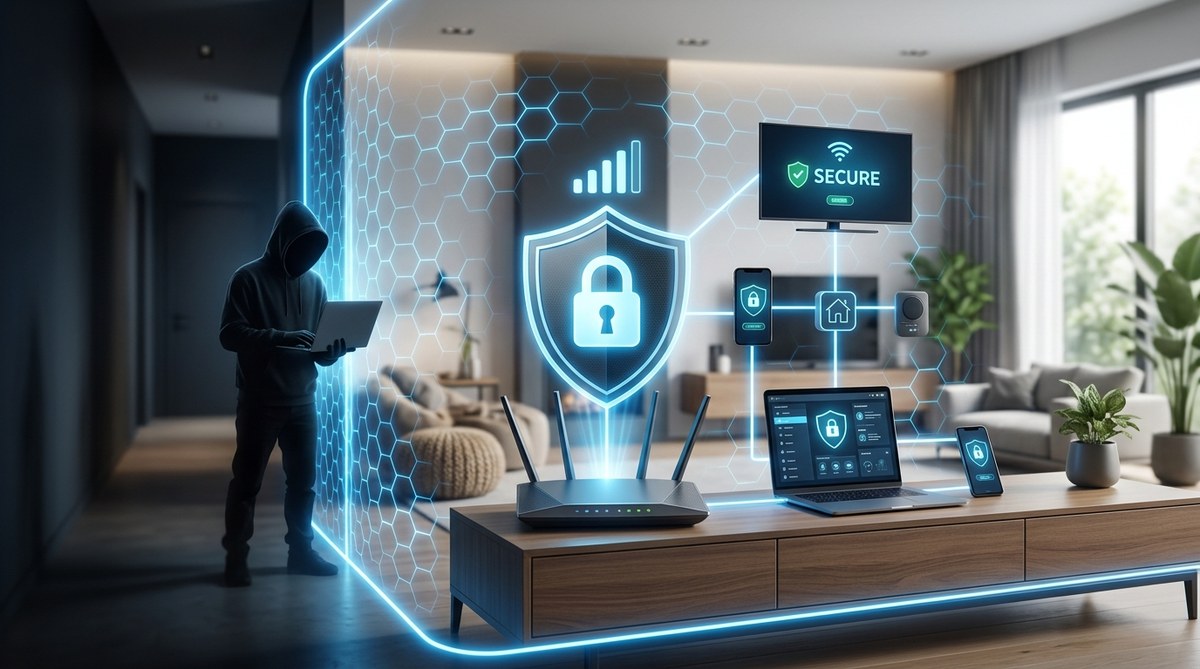
Your neighbor could be streaming movies on your internet right now. Or worse, someone halfway across the world might be monitoring every device connected to your network. Most home WiFi networks have glaring security holes that take less than five minutes to exploit. The good news? Fixing them doesn’t require a computer science degree.
Securing your home WiFi network involves eight critical steps: changing default router credentials, enabling [WPA3 encryption](https://en.wikipedia.org/wiki/WPA3), creating a strong network password, hiding your SSID, disabling WPS, updating firmware regularly, setting up a guest network, and monitoring connected devices. These measures dramatically reduce your vulnerability to hackers, freeloaders, and data thieves without requiring technical expertise.
Why Your WiFi Network Is Already Vulnerable
Most routers ship with factory settings designed for convenience, not security. Default passwords like “admin” or “password” are publicly available in online databases. Attackers use automated tools to scan neighborhoods for these easy targets.
Your network name broadcasts constantly. Anyone within range can see it. If you’re using outdated encryption or no password at all, your personal data flows freely to anyone listening.
Think about what’s connected to your WiFi right now. Laptops holding tax documents. Phones with banking apps. Smart home devices recording conversations. Each one becomes a potential entry point when your network lacks proper protection.
Change Your Router’s Default Admin Credentials
This is your first line of defense. Every router model comes with a default username and password printed in the manual or on a sticker. Hackers know these combinations for thousands of router models.
- Open your web browser and type your router’s IP address (usually 192.168.1.1 or 192.168.0.1).
- Log in using the current admin credentials.
- Navigate to the administration or settings section.
- Create a new username that isn’t “admin” or “administrator.”
- Set a strong password with at least 12 characters, mixing letters, numbers, and symbols.
- Save the changes and log back in with your new credentials.
Store these credentials in a password manager, not on a sticky note attached to your router. If someone gains physical access to your router, they shouldn’t also get the keys to your network.
Enable WPA3 Encryption (or WPA2 at Minimum)
Encryption scrambles the data traveling between your devices and router. Without it, anyone nearby can intercept your passwords, messages, and browsing history.
WPA3 is the newest standard. It protects against brute-force attacks where hackers try thousands of password combinations. If your router was manufactured after 2018, it likely supports WPA3.
Older routers may only offer WPA2. That’s acceptable for now, but avoid WPA or WEP. These outdated protocols have known vulnerabilities that take seconds to crack.
Check your router settings under wireless security or encryption settings. Select WPA3-Personal if available. Otherwise, choose WPA2-Personal with AES encryption.
“Most home network breaches happen because people never change the security settings from what came out of the box. Spending ten minutes in your router settings today prevents months of headaches later.” – Network Security Researcher
Create a Strong WiFi Password
Your WiFi password is different from your router admin password. This one protects access to your internet connection itself.
Avoid common mistakes:
- Using your address, phone number, or birthdate
- Creating passwords shorter than 12 characters
- Reusing passwords from other accounts
- Including dictionary words or predictable patterns
A strong WiFi password looks random: “mK9$pLq2&vN8xR3!” Your devices will remember it after the first connection. You only need to enter it when adding new devices or sharing access with guests.
Consider using a passphrase instead. String together four or five unrelated words with numbers and symbols: “Cactus72!Envelope#Mountain$Piano.” This approach creates length and complexity while staying memorable.
Hide Your Network Name (SSID)
Your network name, called an SSID, broadcasts to every device within range. Hiding it adds a layer of obscurity. Attackers can still detect hidden networks with the right tools, but casual snoops won’t see your network in their available WiFi list.
Access your router settings and look for wireless settings or SSID broadcast options. Disable SSID broadcasting or check the box for “hidden network.”
After hiding your SSID, you’ll need to manually enter the network name when connecting new devices. This small inconvenience significantly reduces your attack surface, especially if you live in an apartment building or dense neighborhood.
Disable WPS (WiFi Protected Setup)
WPS was designed to make connecting devices easier. You press a button on your router, press a button on your device, and they pair automatically. Sounds convenient. It’s also a massive security flaw.
WPS uses an eight-digit PIN that can be cracked in hours using freely available software. Once someone has that PIN, they bypass your WiFi password entirely.
Find the WPS settings in your router configuration. Turn it off completely. The few seconds you save connecting devices isn’t worth the risk. Understanding why your home router is the weakest link in your network security helps put this risk in perspective.
Keep Your Router Firmware Updated
Router manufacturers regularly release firmware updates to patch security vulnerabilities. Attackers actively scan for routers running outdated software with known exploits.
Some newer routers update automatically. Most don’t. You need to check manually.
Log into your router admin panel and look for firmware, software update, or system upgrade options. Check for updates at least once every three months. Mark it on your calendar like changing smoke detector batteries.
Before updating, note your current settings. Some updates reset configurations to factory defaults. Having your custom settings documented saves time reconfiguring everything.
Set Up a Guest Network
Your main network should only include devices you own and trust. When friends visit and ask for WiFi, they shouldn’t connect to the same network as your laptop and smart home devices.
Most modern routers support guest networks. This creates a separate WiFi connection with its own password. Guest devices can access the internet but can’t see or interact with devices on your main network.
Enable the guest network in your router settings. Give it a different name from your main network. Set a simpler password that’s easier to share verbally. Limit bandwidth if you’re concerned about guests consuming too much data.
This isolation protects you even if a guest’s device is infected with malware. The infection can’t spread to your primary devices when they’re on separate networks. Many critical mistakes that compromise your home network security involve mixing trusted and untrusted devices on the same network.
Monitor Connected Devices Regularly
Your router maintains a list of every device currently connected to your network. Reviewing this list helps you spot unauthorized access before it becomes a problem.
Access your router’s device list, sometimes called “attached devices,” “DHCP client list,” or “connected devices.” You’ll see each device’s name and MAC address (a unique hardware identifier).
Look for unfamiliar devices. Your laptop, phone, and smart TV should be recognizable. An unknown device labeled “Android Phone” or “Windows PC” deserves investigation.
Most routers let you block specific devices by MAC address. If you find an intruder, block them immediately and change your WiFi password. Then review all the previous security steps to identify how they gained access.
Common Security Measures Compared
| Security Measure | Effectiveness | Difficulty | Time Required |
|---|---|---|---|
| Change admin password | High | Easy | 3 minutes |
| Enable WPA3/WPA2 | Very High | Easy | 2 minutes |
| Strong WiFi password | Very High | Easy | 5 minutes |
| Hide SSID | Medium | Easy | 2 minutes |
| Disable WPS | High | Easy | 1 minute |
| Firmware updates | High | Medium | 10 minutes |
| Guest network | Medium | Easy | 5 minutes |
| Device monitoring | Medium | Easy | 5 minutes monthly |
Additional Security Layers Worth Considering
MAC address filtering lets you create a whitelist of approved devices. Only devices on your list can connect, even with the correct password. This adds protection but requires updating the list every time you get a new device.
Disabling remote management prevents anyone from accessing your router settings from outside your home network. Unless you specifically need this feature, turn it off.
Reducing your router’s broadcast power limits how far your signal reaches. If your WiFi extends far beyond your property, you’re giving attackers more opportunities to intercept it. Most routers let you adjust transmission power in advanced settings.
Consider your router’s physical location. Placing it near windows broadcasts your signal to the street. Centering it in your home improves coverage while reducing external reach.
What Happens When Security Fails
Unsecured networks invite multiple threats. Bandwidth theft is the least concerning. Someone streaming video on your connection slows your speeds and potentially triggers data cap overages.
More serious risks include man-in-the-middle attacks. An attacker positions themselves between your device and the internet, intercepting everything you send and receive. Login credentials, credit card numbers, private messages all become visible.
Compromised networks can serve as launching points for illegal activity. If someone uses your connection to distribute pirated content or launch cyberattacks, investigators trace that activity back to your IP address. You’ll need to prove you weren’t responsible.
Smart home devices on unsecured networks are particularly vulnerable. Attackers can access security cameras, unlock smart locks, or manipulate thermostats. These scenarios move beyond digital inconvenience into physical security concerns. Learning about social engineering tactics hackers use to bypass your best security systems reveals how attackers combine technical and psychological methods.
Signs Your Network May Already Be Compromised
Watch for these warning signals:
- Internet speeds suddenly drop without explanation
- Your router’s lights blink constantly when you’re not using devices
- Unfamiliar programs or toolbars appear on your computer
- You receive password reset emails you didn’t request
- Your internet service provider contacts you about suspicious activity
- Devices disconnect randomly or won’t stay connected
- Your router settings changed without your involvement
If you notice these signs, assume the worst. Change all passwords immediately. Scan all devices for malware. Check your router’s device list for intruders. Consider factory resetting your router and reconfiguring it from scratch.
Knowing what should you do in the first 24 hours after a data breach helps you respond effectively if you discover unauthorized access.
When to Replace Your Router
Technology advances constantly. A router from 2015 lacks modern security features and may no longer receive firmware updates. Manufacturers typically support routers for three to five years after release.
If your router doesn’t support WPA3, consider upgrading. The price of a new router is minimal compared to the cost of recovering from a security breach.
Look for routers with automatic firmware updates, guest network support, and robust admin controls. Read recent reviews focusing on security features, not just speed and range.
Internet service providers often supply basic routers that prioritize cost over security. Purchasing your own router gives you better control over security settings and often improves performance.
Building Long-Term Security Habits
Security isn’t a one-time task. Threats evolve. New vulnerabilities emerge. Your security practices need to adapt.
Set calendar reminders for monthly device list reviews and quarterly firmware checks. When you add new smart home devices, research their security implications before connecting them. Many cheap IoT devices have terrible security that can compromise your entire network.
Stay informed about major security vulnerabilities affecting home routers. Technology news sites report when researchers discover serious flaws. If your router model appears in these reports, take action immediately.
Consider security a household responsibility. Everyone using your network should understand basic safety practices. Don’t share your WiFi password publicly. Don’t click suspicious links on connected devices. Report unusual network behavior.
Building awareness around how to create an incident response plan that actually works prepares you to handle security events calmly and effectively.
Your Network, Your Responsibility
Home WiFi security isn’t optional anymore. Your network connects to bank accounts, medical records, work documents, and personal communications. Every unsecured moment is an opportunity for someone else to access that information.
The steps outlined here take less than an hour total. That hour protects everything connected to your network. Your financial data stays private. Your conversations remain confidential. Your internet connection serves only the people you authorize.
Start with the basics today. Change those default passwords. Enable encryption. Create a strong WiFi password. Each step makes you a harder target. Attackers look for easy victims. Don’t be one.
Your network security directly impacts everyone in your household. Take responsibility for protecting it. The alternative is waiting for a breach to force action, and by then the damage is done.