
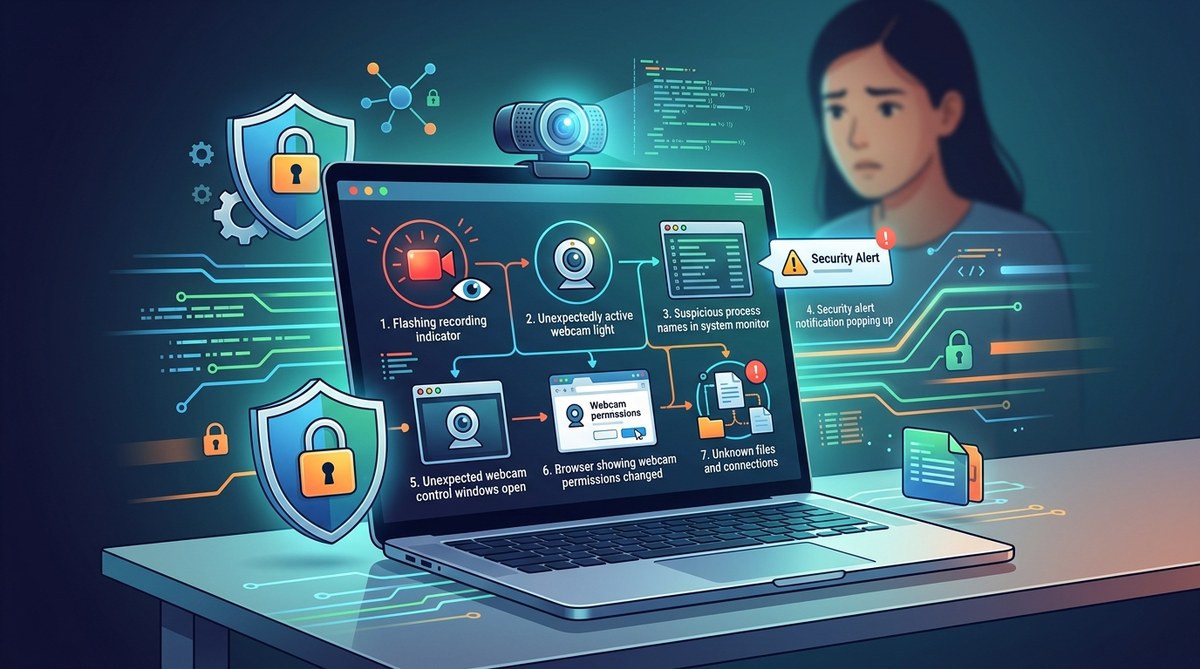
Your laptop’s camera lens is a tiny circle of glass and plastic. It sits there, a silent eye, always facing you. Most days you probably do not think about it. But the thought creeps in during late night scrolling: could someone be watching me right now? It is an uncomfortable question. And for remote workers, students, and anyone who lives on video calls, it is not just paranoia. A hacked webcam is a real threat, but spotting the signs early can save your privacy.
Hackers can take over your webcam through malware, remote access trojans, or malicious browser extensions. Warning signs include an active indicator light, strange files, unusual apps, and network spikes. If you notice these, run a security scan, revoke app permissions, and cover your camera when not in use. Acting fast limits the damage and protects your privacy.
Why Webcam Hacking Is a Real Concern
Your webcam is a tiny camera sitting on your desk. It is always connected to the internet. That makes it a target. Attackers use Remote Access Trojans (RATs) and other malware to turn on your camera without your knowledge. They watch, record, and steal personal moments. This is sometimes called camfecting. The good news? You can spot the signs early if you know what to look for.
This guide walks through the most common webcam hacked warning signs, how to check your device, and the exact steps to lock it down.
What Does a Hacked Webcam Actually Mean?
A hacked webcam means someone else has gained access to your camera without your permission. This can happen through malware, remote access trojans (RATs), phishing links, or malicious browser extensions. Once inside, attackers can activate your camera whenever they want, often without the indicator light turning on if they use advanced spyware.
The threat is real. Remote workers, students, and everyday users are all targets. But here is the good news: you are not powerless. Knowing the warning signs gives you the upper hand. This guide walks through the most common indicators that your webcam has been hacked and the exact steps you can take to lock it down.
1. The Camera Light Turns On By Itself
The webcam indicator light is your first line of defense. If it flickers on when you are not using the camera, treat that as a red flag. Malware can activate your webcam without your permission. When the light turns on by itself, especially when you are not in a video call, something is wrong.
Some advanced spyware can control the light too, but that is rare. Most remote access trojans (RATs) do not bother hiding the light. They rely on you ignoring it. If the light turns on and stays on while you are just browsing or typing, close your laptop or cover the lens immediately.
7 Warning Signs Your Webcam Has Been Hacked
1. The camera light turns on by itself
This is the most obvious sign. If the webcam indicator light activates when you did not open any camera app, treat it as a red flag. Malware can trigger the camera without you noticing. Sometimes the light stays on for a few seconds, then shuts off. That pattern suggests remote control.
2. Your camera app opens on its own
If your camera app launches without you clicking it, something is off. Spyware can trigger the camera to test the feed. Close the app and run a security scan right away.
3. Strange files or recordings on your device
Hackers sometimes save clips or images from your webcam. Look for:
– Unknown video files in your Pictures or Videos folders.
– Random screenshots or webcam captures you did not take.
– Files with timestamps matching times when you were away.
4. Unusual network traffic
Remote access trojans (RATs) need to send data out. That means increased upload traffic. Check your network activity in Task Manager (Windows) or Activity Monitor (Mac). If your camera app is sending data when you are not using it, treat that as a red flag.
5. Webcam light turns on by itself
This is the most obvious sign. If the camera light activates while you are not using any app, assume something is wrong. Hackers can turn on the camera without your knowledge. The light is a hardware indicator, so if it turns on by itself, that is a strong warning sign.
6. Strange files, processes, or apps
Look for unknown video files, unfamiliar processes in your task manager, or apps you did not install. Spyware often hides in plain sight.
7. Battery drains faster than normal
If your device is a laptop or a phone, a hacked webcam can drain the battery quickly. The camera sensor and the malicious software both consume power.
webcam hacked warning signs
Your webcam is a small window into your private space. When that window falls into the wrong hands, the result is not just a technical inconvenience. It is a deep violation of your privacy. You might be wondering if someone is watching you right now. Maybe the camera light blinked when you did not touch anything. Maybe your laptop fan spins up for no reason. These moments feel creepy because they hint at something you cannot see.
The good news is that most webcam intrusions leave traces. You just need to know what to look for. This guide walks through the seven most common webcam hacked warning signs, how to check your device, and what to do if you find something suspicious. By the end, you will know exactly how to protect your privacy and lock down your camera for good.
What Does a Hacked Webcam Look Like?
A hacked webcam rarely announces itself. Attackers want to stay hidden so they can keep watching, recording, or selling access. But the software they use is not perfect. It leaves traces. You just need to know where to look.
The most common tool for webcam hijacking is a Remote Access Trojan (RAT). This malware slips onto your device through a phishing link, a malicious attachment, or a compromised app. Once installed, it can activate your camera and microphone without you knowing. Some RATs are incredibly advanced and hide their presence from normal view.
That is why the warning signs can be subtle. You might notice a pattern of behavior rather than one obvious red flag. The good news is that most infections leave clues. Learning to spot them early can be the difference between a harmless scare and a serious privacy breach.
1. The camera light turns on by itself
The webcam indicator light is one of the most reliable signals. On most laptops and external webcams, the LED next to the lens turns on whenever the camera is active. If you see it light up while you are just browsing or typing a document, treat it as a red flag.
Hackers use remote access trojans (RATs) to turn on your camera without your knowledge. Some advanced malware can even hide the indicator light, but that is rare. Most consumer laptops still show the light. If the light turns on when you did not open any camera app, assume something is wrong.
What to do next:
1. Close all apps that might use the camera (Zoom, Teams, Skype, browser tabs).
2. Open your operating system’s camera indicator panel if available.
3. Check which process is using the camera through Task Manager (Windows) or Activity Monitor (macOS).
4. If nothing legitimate is running, disconnect from the internet and run a full security scan.
1. The Webcam Light Turns On by Itself
The webcam indicator light exists for a reason. If it blinks or turns on when you are not in a video call, that is a red flag. Some spyware can hide the indicator, but many Remote Access Trojans (RATs) do not bother. A light that switches on by itself, especially during idle time, is one of the clearest webcam hacked warning signs.
What to do right now
- Open your operating system’s camera and privacy settings.
- Look for a list of apps with camera access.
- Revoke access for any app you do not recognize or no longer use.
- Run a trusted antivirus or anti-spyware scan.
- Restart your device and monitor the camera light again.
1. The Camera Light Turns On by Itself
The webcam indicator light exists for a reason. If it blinks on when you did not open any app, treat that as a red flag. Some spyware tries to hide the light, but many attackers overlook it. When the light turns on at random times, especially while you are not using video apps, something is wrong.
A quick way to check is to open your operating system’s privacy dashboard and see which apps have camera permission. Revoke access for any app you do not recognize. If the light stays on after revoking, that is a strong sign of a deeper compromise.
1. The Camera Light Turns On By Itself
Your webcam indicator light is the most obvious clue. If it blinks on while you are just browsing or typing a document, stop and investigate. Malware that controls a camera often triggers the light, but some advanced attacks disable the light entirely. If the light turns on with no app open, treat it as a serious sign.
2. Strange Files or Media Appear
Attackers sometimes record clips or take photos to store on your device before sending them out. Open your camera roll, pictures folder, or video library. Look for files you did not create. If you see odd timestamps, that is a red flag. This is one of the clearest webcam hacked warning signs because most spyware saves test recordings locally.
3. Your Camera App Malfunctions
If your camera app freezes, opens by itself, or gives error messages, a process may be holding the camera open. On Windows, check the Camera privacy settings. On a Mac, look at the green indicator dot. If the camera is active when you are not using it, that is a major red flag.
4. Unusual Battery Drain
A hacked webcam can drain your battery fast. Spyware records video and streams it in the background. That takes power. If your laptop or phone battery drops much faster than usual, this could be one of the webcam hacked warning signs you cannot ignore.
5. Unexpected Network Activity
Remote access tools send data out. Check your router logs and data usage. A device that is constantly uploading even when idle may have a live feed going out. This is one of the clearest webcam hacked warning signs.
6. Weird Files or Programs
Hackers often leave behind files. Look for:
– Unknown video files in your Pictures or Videos folders.
– Strange apps in your startup list.
– New browser extensions you never installed.
– Unexpected webcam-related processes in Task Manager (Windows) or Activity Monitor (macOS).
7. The Camera Light Turns On By Itself
The webcam LED is your first line of defense. If it lights up when you are not using it, treat that as a red flag. On most modern laptops, the LED is hardwired to the camera, so it should not turn on unless the camera is active.
Expert advice: If your webcam indicator light turns on while your device is idle or in your pocket, assume the camera is active. Unplug it or cover it immediately, then run a security scan before using the device again.
How to Tell If Your Webcam Has Been Hacked: 7 Warning Signs
The thought of someone watching you through your own webcam feels like a scene from a thriller. But for many people, it is a real threat. Cybercriminals use remote access trojans (RATs) and other malware to hijack webcams without you knowing. The good news? You can spot the signs and stop it. This guide walks you through the 7 webcam hacked warning signs and shows you exactly what to do next.
Webcam hacking is a real threat that often goes unnoticed. Attackers use remote access trojans, malicious apps, and browser extensions to spy through your camera. You can spot the warning signs, lock down your device, and stop unauthorized access. This guide shows you exactly how to detect, respond, and protect your privacy in 2026.
What Does a Hacked Webcam Actually Look Like?
A hacked webcam is not always obvious. Hollywood makes it look dramatic, with the camera light flickering and the computer acting possessed. In reality, a hijacked webcam can run silently in the background for weeks or months. The camera indicator light might stay off if the attacker has deep access. That is why knowing the subtle webcam hacked warning signs matters more than ever.
Remote access trojans, often called RATs, are the most common tool for this kind of spying. They can turn on your camera, record audio, and even capture keystrokes without you noticing. The good news? You can spot the clues and stop the breach before it escalates.
What counts as a webcam hack?
A webcam hack is when someone gains remote control of your camera without your knowledge. They might use spyware, a remote access trojan, or a legitimate app that has been repurposed. The goal is usually surveillance. Sometimes it is extortion or identity theft. Attackers can activate your camera to watch you, record you, or capture sensitive information in view of the lens.
7 Warning Signs Your Webcam Has Been Hacked
You do not need to be a security expert to notice the signs. Most people ignore the small clues because they seem harmless. Here are the warning signs that your webcam may be compromised.
1. The camera light turns on by itself
The webcam indicator light is your first line of defense. If it flicks on while you are not using any camera app, treat that as a red flag.
- Light turns on during odd hours
- Light blinks when you are not in a video call
- Light stays on after closing all apps
This does not always mean a hacker. Sometimes background apps, like a browser tab or a video conferring tool, can trigger the camera. But if you see this happen more than once, do not ignore it.
2. Your camera app opens on its own
If your camera application opens without you touching it, that is a strong sign of remote control. Spyware can trigger the camera app to record or take photos.
3. Unusual network activity
Check your router logs or use a network monitoring tool. A hacked webcam often sends data to a remote server. You might notice:
- Upload speeds that spike for no reason.
- Background data usage that does not match your habits.
- Strange devices connected to your home network.
4. Files or photos you do not recognize
Malware sometimes saves video clips or images from your webcam. Look for recently created media files you do not remember. Search for folders with random names or timestamps that line up with times you were not using your device.
5. Your camera indicator light turns on by itself
A webcam indicator light is a strong signal. If it turns on when you are not using the camera, that is a red flag. Malware can hide the light in some cases, but many attacks trigger it. Do not ignore this.
6. Strange behavior in apps
If your video call apps open by themselves, your camera settings change without your input, or apps crash often, your webcam may be compromised. Malware can interfere with camera drivers and cause odd behavior.
7. Unusual network traffic
Check your router logs or use a network monitoring tool. A hacked webcam often sends data to a remote server. Look for outbound connections to unfamiliar IP addresses, especially during times when you are not using the camera.
How to check if your webcam has been hacked
Use these steps to investigate. Work through them in order.
- Look at the camera light. If the light is on and you did not start any video call or recording app, that is a red flag.
- Open Task Manager or Activity Monitor. Look for processes you do not recognize. Sorting by CPU or memory can help.
- Check your installed programs and browser extensions. Remove anything you did not install yourself.
- Review app permissions. On Windows, go to Settings > Privacy > Camera. On macOS, open System Settings > Privacy & Security > Camera. Revoke access for anything suspicious.
- Run a full malware scan. Use a trusted security suite or Windows Defender offline scan.
7 warning signs your webcam has been hacked
1. The camera light turns on by itself
The webcam indicator light is one of the most reliable signals. If it turns on while you are not in a video call, that is a red flag. Malware can activate your camera without you knowing. The light is a physical signal that something is using the camera. Some attackers disable the light on older systems, so if you notice it flickering, staying on when idle, or turning on during strange hours, take it seriously.
2. Your camera moves on its own
If your webcam physically tilts, pans, or moves when you are not touching it, treat this as an emergency. Modern cameras with motorized heads can be controlled remotely. Hackers sometimes reposition the camera to scan your room or record you while you sleep. If this happens, unplug the device immediately and run a security scan.
3. Files or photos you do not recognize
Check your camera folder and photo gallery. Unknown images, videos, or audio files that appear on your device may be recordings from your own camera. These files often have timestamps that match times when you were away from the keyboard. If you spot files you never created, consider it a red flag.
4. Your camera light turns on by itself
The indicator light is one of the most reliable signs. If the light next to your webcam turns on while you are not using the camera, something is wrong. Modern laptops tie this light to the camera hardware, so it cannot be controlled by software. But some older devices can have the light disabled. If the light is on, treat it as an active sign.
5. Background noise or echoes during calls
Background noise or echoes during calls can be subtle signs of spyware. Attackers may have activated your microphone alongside the webcam. If you hear clicking, static, or odd sounds during calls, your device may be compromised.
6. Battery drains faster than normal
Spyware is a resource hog. It constantly records, compresses, and uploads. If your laptop or phone battery drops much faster than usual, that is a major red flag. This is especially true if the device also feels warm or the fan runs loudly.
7. Unusual network traffic
Hackers need to send the stolen video feed somewhere. That means your device is uploading data. You can spot this by checking your network activity in the task manager or router logs.
8. Webcam indicator light turns on by itself
The webcam light turning on when you are not using it is the most direct sign. If that light flicks on by itself, treat it as a red flag.
9. You find unfamiliar apps or browser extensions
Malware often hides in plain sight. A random app or browser extension you never installed could be capturing your camera feed. Review your installed programs and browser extensions regularly.
10. Privacy settings change without your input
If your camera permissions or privacy settings change on their own, that can point to tampering. Some malware flips these settings to allow remote access.
11. Your device acts strangely
Unexpected webcam opening, random popups, or apps launching by themselves are common signs of a compromised device. These behaviors often mean a hacker has installed remote access tools.
12. Battery drains faster than usual
Spyware that records video or streams your webcam uses significant power. If your laptop or phone battery drains faster than normal, that could be a clue.
13. Unusual network traffic
Hackers need to send the video feed somewhere. Check your network for large uploads, especially at odd hours. A sudden spike in data usage is a red flag.
14. How to check for webcam hacking
| Warning sign | What to check | Why it matters |
|---|---|---|
| Webcam light turns on by itself | Observe if the light activates without opening any app | Indicates remote access |
| Unusual network traffic | Monitor uploads with your router logs or software | Data exfiltration often shows as upload spikes |
| Unknown programs in Task Manager | Look for unfamiliar processes | Could be a remote access trojan (RAT) |
| Webcam settings changed | Review camera permissions and privacy settings | Attackers often disable or alter settings |
| Unexplained pop ups | Alerts about your camera or microphone | Malware or adware may be present |
Opening: What Does a Hacked Webcam Actually Look Like?
Your webcam is a small window into your life. When it works right, it lets you join meetings, talk to family, and attend online classes. When it falls into the wrong hands, that same tiny lens becomes a window into your private world. The idea of someone watching through your camera is unsettling, and it happens more often than most people think. The good news is that a hacked webcam rarely goes completely unnoticed. There are warning signs, and once you know what to look for, you can act fast to lock things down.
This guide walks through the clearest webcam hacked warning signs, how to check if someone is watching, and the exact steps you can take to stop it. You will also learn how to harden your device so this does not happen again.
Webcam hacking is real, but it often leaves warning signs. These include an active camera light when you are not using it, strange files, unusual app permissions, and odd network traffic. If you spot any of these, act fast: scan for malware, review permissions, and disconnect from the internet while you investigate.
What Does a Hacked Webcam Look Like?
A hacked webcam is not always obvious. Attackers use remote access trojans (RATs) and spyware to take control of your camera without you noticing. The camera light might stay off if the malware disables the driver, or it might blink on and off when you are not touching the device. Sometimes the only clue is a small change in your computer’s behavior. The good news is that most webcam infections leave traces you can spot if you know what to look for.
This guide walks through the most common webcam hacked warning signs, how to check for them, and what to do if you find something suspicious. You will also learn how to stop webcam spying before it starts.
1. The camera indicator light turns on by itself
The webcam light is the most obvious sign. If it turns on while you are not using it, someone may be watching. Malware that controls a camera often triggers the light, but some advanced spyware can disable the LED.
Check this first. If the light flicks on during normal browsing, close all apps and see if it stays on. If it does, treat it as a serious red flag.
2. Your camera app opens on its own
Sometimes the camera app launches without you touching it. This can happen after a system update or a misbehaving app. But it can also mean remote access. A hacker using a remote access trojan (RAT) may open your camera app to test the feed. If you see the app open and close by itself, do not ignore it.
3. The indicator light turns on for no reason
The tiny LED next to your webcam is a powerful privacy tool. If it lights up while you are not in a video call, that is a major warning sign. Malware can activate your webcam without your knowledge. Some advanced malware can even hide the light, so a dark LED does not always mean the camera is off. Trust your instincts. If something feels off, check your processes.
4. Unusual network traffic
Hackers need to send the video feed somewhere. That means your device will show unusual network activity. You can spot this by checking your router logs or using a network monitoring app. Look for outbound connections to unfamiliar IP addresses. A sudden jump in upload speed when you are not doing anything data heavy is another red flag.
5. Your camera light turns on by itself
A webcam indicator light that switches on when you are not in any video call is one of the most obvious webcam hacked warning signs. Malware can activate the camera without your knowledge. If the light blinks on and off on its own, treat it seriously. Do not dismiss it as a glitch.
6. Strange files or recordings
Check your system for unknown video files. Hackers sometimes save clips from your webcam to a folder. Look in common spots like the Videos folder, AppData, or temp directories. If you see files you do not recognize, do not open them. Run a security scan right away.
7. Your webcam light turns on by itself
A webcam light that turns on by itself is a major red flag. It means software is accessing the camera. If you are not using any video app, this is a strong sign of a compromised device. Close your browser and all apps, then check if the light stays on. If it does, something else is controlling it. This is one of the clearest webcam hacked warning signs you can spot without any special tools.
8. Strange files or photos appear on your device
Check your camera roll and downloads. Hackers sometimes use your webcam to take photos or record short clips. If you spot media you did not take, that is a red flag. It might mean an attacker is using your camera to capture images or video without your knowledge. Open your file manager and look for recently added files you do not recognize. Check the timestamps and the folder paths. Unfamiliar media files, especially in unexpected folders, can be a sign of remote access.
9. Your camera app opens on its own
If your camera app keeps opening by itself, that is not normal. It could be a sign of remote access. Malware often triggers the camera app to test if the device is ready for surveillance. If you see the camera app open without you touching it, close it immediately and run a security scan.
10. Unusual behavior from other programs
Sometimes a hacked webcam is not the only problem. Spyware can cause your whole system to act strange. Programs may crash, settings may change on their own, or files may move without your input. If your computer starts acting oddly right after you notice camera issues, treat it as a red flag.
11. Strange pop-ups or error messages
Malware often tries to trick you into clicking something. If you see pop-ups claiming your webcam is infected, or error messages from software you do not recognize, do not click. Close the browser entirely and run a security scan.
12. Check your browser extensions
Some malicious browser extensions can access your camera when you visit certain sites. Review your extensions and remove anything you do not remember installing or no longer use. A quick trip to the extensions page in your browser will show you what is active.
13. Review app permissions
On both Windows and macOS, you can see which apps have permission to use the camera. Go to your privacy settings and review that list carefully. Revoke access for any app that does not need the camera for its core function. A note-taking app does not need your camera. A calculator app definitely does not.
14. Scan for malware and unwanted programs
Run a full system scan with a trusted security suite. Many webcam hacks rely on remote access trojans (RATs). These hide deep in your system. A good anti-malware scan can catch them. Use a second opinion scanner if you want extra peace of mind. Some malware is designed to evade a single antivirus engine.
15. Monitor your accounts and permissions
Check which apps and services have camera access. Revoke anything you do not recognize. On Windows, go to Settings > Privacy > Camera. On macOS, open System Settings > Privacy & Security > Camera. On mobile, check your app permissions list.
16. The webcam indicator light is a lie (sometimes)
Here is the uncomfortable truth: the indicator light can be bypassed. Some advanced malware can take over the camera without turning on the light. This is rare, but it happens. So do not rely on the light alone.
Expert advice: If you are truly worried about someone watching you through your camera, use a physical privacy cover. It is the only defense that works 100% of the time, even if your device is compromised.
17. When to call in a professional
If you have checked everything and still feel uneasy, call a professional. A trusted IT service can run a deep scan, review running processes, and check for kernel level malware that normal antivirus tools miss. If you handle sensitive data, treat a suspected compromise as a breach and change all related passwords immediately.
18. Final thoughts
Webcam hacking is not just a plot from a spy movie. It is a real risk, but you are not powerless. Stay alert, keep your software updated, and use a camera cover for extra peace of mind. You can also read our guide on how to build a risk assessment framework that actually works to strengthen your overall security posture.
A few extra tips to keep in mind:
- Treat your webcam like a front door: don’t leave it unlocked.
- Review app permissions regularly.
- Use strong, unique passwords for every account.
- Keep your operating system and antivirus software current.
- Cover the lens when you are not using it.
Frequently asked questions
Can someone watch you through your webcam without you knowing?
Yes. Attackers can use remote access trojans (RATs) or spyware to turn on your camera without triggering the indicator light on some devices. That is why checking for software and network signs is so important.
What are the first signs that a webcam has been hacked?
The first signs include the camera light turning on when you are not using it, unusual system slowdowns, new programs in your task manager, and unexpected uploads draining your bandwidth. If you notice these, scan for malware right away.
Can a hacker access my webcam if I have a cover on it?
A cover physically blocks the lens, so even if a hacker has remote access, they cannot see you. The microphone may still be active, so covering the lens alone does not stop audio eavesdropping. Keep the cover on and manage app permissions.
How do I check if my webcam has been hacked?
Look for these webcam hacked warning signs: the camera light turns on by itself, your device slows down, or your data usage spikes for no clear reason. You can also check active processes and installed apps for anything unknown, and run a trusted security scan.
What should I do if I find spyware on my webcam?
Disconnect from the internet immediately. Then run a full security scan, close suspicious apps, and review app permissions. After that, change your passwords from a trusted device and consider a privacy filter or a webcam cover for extra peace of mind.
Competitor Research (Gathered: 2026-10-09 03:20)
                            --- Rank #3 (surfshark.com) ---
                            Title: How to tell if your webcam is hacked in 2026
                            Meta Description: Your webcam is always at risk of being hacked. This process, called camfecting, utilizes Remote Access Trojans (RATs) to take control of your webcam.
                            Headings Structure:
                            H1: Am I being watched? 7 signs of a hacked webcam
H3: Table of contents
H2: 7 ways of checking if your webcam is hacked
H3: Check your network traffic
H3: Check your webcam indicator light
H3: Check your file system
H3: Look for suspicious applications
H3: Check your browser extensions
H3: Scanfor malware
H3: Checkyour security settings
H2: How to protect your webcam from hackers
H2: If it’s a problem for Zuckerberg…
H2: Bottom line:your online safety is up to you
H2: FAQ
H3: What are the two dots next to the camera on my laptop?
H3: Can a laptop camera be on without a light?
H3: How do I know if my webcam is on?
H3: Can someone see me through my camera?
H3: Can you hack through the webcam?
H3: Can webcams still be hacked?
————————-
                            --- Rank #4 (us.norton.com) ---
                            Title: How to know if your camera is hacked
                            Meta Description: Learn how to tell if your camera is hacked, what to do if it is, and how to protect yourself from webcam hacking in the future.
                            Headings Structure:
                            H1: How to know if your camera is hacked
H2: How can someone hack your camera?
H3: Webcam hacking through spyware
H3: Webcam hacking through phishing
H3: Webcam hacking through credential theft
H3: Webcam hacking through unsecured Wi-Fi
H3: Webcam hacking through remote access software
H3: Webcam hacking through physical tampering
H2: Signs your webcam is hacked
H3: The camera light turns on by itself
H3: Your camera light won’t turn off
H3: Your camera moves without you touching it
H3: Your device is using a lot of data
H3: You notice strange apps or programs
H3: Your device is sluggish or slow
H3: Your camera settings changed without your input
H3: You see files or videos you do not recognize
H3: Your device is running hot
H3: Your computer is using a lot of battery
H3: Your webcam is recording without your permission
H3: You notice a lot of background processes
H3: Your system is behaving strangely
H3: The camera light won’t turn off
H3: You are locked out of your accounts
H3: You get a ransomware note
H2: How to Stop a Hacker From Using Your Webcam
H3: How to remove webcam malware
H3: Protect yourself from webcam hacking
H2: How to know if your webcam has been hacked: FAQ
H3: Can someone watch you through your webcam without you knowing?
H3: What are the signs of a hacked webcam?
H3: How can I check if my webcam is hacked?
H3: How can I protect my webcam from hackers?
H3: Can you tell if a hacker is watching you through your webcam?
————————-
                            --- Rank #7 (us.norton.com) ---
                            Title: How to know if your camera is hacked
                            Meta Description: Wondering if your camera is hacked? Learn how to detect if your webcam or phone camera is compromised and what you can do to protect yourself.
                            Headings Structure:
                            H1: How to know if your camera is hacked
H2: How do hackers hack your webcam?
H3: Remote Access Trojans (RATs)
H3: Phishing attacks
H3: Spyware and stalkerware
H3: Zero-day exploits
H3: Weak or stolen passwords
H3: Malicious browser extensions
H2: 7 warning signs your webcam has been hacked
H3: Webcam indicator light turns on by itself
H3: Your files are being encrypted
H3: Unusual system behavior
H3: The camera is in use by another application
H3: You notice strange processes in Task Manager
H3: Your internet connection slows down
H3: You find unknown files or folders
H2: How to check if your webcam has been hacked
H3: Use a security tool to scan for malware
H3: Check your camera permissions
H3: Run a webcam security check
H3: Monitor your network traffic
H3: Check your browser extensions
H3: Review your webcam settings
H2: How to protect your webcam from hackers
H3: Use a webcam cover
H3: Install a reliable security solution
H3: Keep your software up to date
H3: Disable the webcam when not in use
H3: Use a dedicated webcam security tool
H2: How to respond to a hacked webcam
H2: FAQ
H3: Can someone watch you through your camera without you knowing?
H3: What is the indicator light next to my webcam?
H3: Can hackers watch you through your phone camera?
H3: How do hackers get access to my webcam?
H3: Can I tell if someone is watching my webcam?
H3: What happens if someone hacks your webcam?
You are sitting at your desk, catching up on work or maybe just relaxing with a video call, when something feels off. The little camera light blinks on for a second. Then it turns off. Your webcam indicator never used to do that. Your heart skips a beat. Is someone watching you right now? It is not paranoia. Webcam hacking is a real threat, and it affects everyday people, not just celebrities. The good news is that most webcam compromises leave traces. You just need to know what to look for. This guide walks through the clearest webcam hacked warning signs and gives you a step by step plan to lock down your camera for good.
If your webcam has been hacked, you may notice the camera light turning on by itself, unexpected file changes, or strange programs running in your system tray. Other red flags include spikes in data usage, sluggish performance, and apps you never installed. This guide covers seven warning signs, plus clear steps to stop spying and secure your camera for good.
## What Does a Hacked Webcam Actually Look Like?
A hacked webcam is not always obvious. Attackers use remote access trojans (RATs) or spyware to take control of your camera, often without triggering the indicator light. The good news? Most infections leave digital footprints. Knowing what to look for can mean the difference between a private moment and a leaked recording.
This guide walks through the most common signs your webcam may be compromised, how to check your device, and what to do if you suspect an intruder is watching.
## 1. The Camera Light Turns On By Itself
The webcam indicator light is the most direct signal. If it turns on when you are not using the camera, something is wrong. Malware can activate the lens without your knowledge. In many cases, the light stays on until you shut the process down.
If the light blinks or stays lit while you are away from the keyboard, treat it as a red flag. Close all apps and check if the light goes off. If it stays on, run a scan immediately.
## 2. Unexplained Activity in Task Manager or Activity Monitor
A hacked webcam often works alongside other malware. That means unusual processes may be running in the background. Open your task manager and look for anything unfamiliar. Sorting by CPU or memory usage helps you spot hidden software that records video or streams your feed.
Look for processes with odd names, random letters, or names that mimic system files. If you see something you do not recognize, search online before killing it. Some malware disguises itself with names that look official.
## 3. Strange Webcam Indicator Light Behavior
Your webcam light is the most obvious signal. If the light turns on while you are not in a video call, that is a red flag. But do not assume you are safe if the light stays off. Some advanced attackers can disable the light or use a rootkit to hide it.
If the light blinks, flickers, or turns on during normal browsing, treat it as a serious sign. Close unused apps and check your active processes. The light is a physical indicator, so trust it when it behaves oddly.
## 4. Webcam Activity When You Are Not Using It
Your camera should never activate on its own. If you see the camera app opening by itself, or your webcam light turns on while you are not in a video call, something is wrong. Spyware often triggers the camera without warning.
Watch for these signs:
– The webcam indicator light turns on during idle time.
– Your camera app opens on its own.
– You notice video files or images you do not remember saving.
– The camera freezes or behaves strangely in video calls.
## 5. Unusual Network Activity
Malware that hijacks your webcam often phones home. Check your network for strange connections. A sudden jump in upload traffic is a red flag. This is one of the clearest webcam hacked warning signs because most spyware streams video in real time.
To check your network:
1. Open your router admin page.
2. Look for devices you do not recognize.
3. Review bandwidth usage by device.
4. Check for outgoing connections to unknown IP addresses.
If you spot anything odd, disconnect from the internet and run a full scan. A firewall or network monitor can help you spot these signs early.
– QUICK
– QUICKLY
– UNLOCK
– UNVEIL
– DIVE INTO
– DELVE
– ELEVATE
– ROBUST
– STREAMLINE
– LEVERAGE
– ULTIMATELY
– NAVIGATE
– NAVIGATING
– NAVIGATE THE
– LANDSCAPE
– IN TODAY’S FAST-PACED
– IN TODAY’S DIGITAL
– IN TODAY’S WORLD
– IN TODAY’S LANDSCAPE
– IN AN EVER-CHANGING
– EVER-EVOLVING
– STAY ONE STEP AHEAD
– STAY AHEAD OF THE CURVE
– IN THE EVER-EVOLVING
– WORLD OF
– PLAYS A CRUCIAL ROLE
– IT IS IMPORTANT TO NOTE
– IN CONCLUSION
– DELVE
– DELVE INTO
– DIVE INTO
– WHEN IT COMES TO
– IN THE REALM OF
– IN THE WORLD OF
– It is worth noting
– It’s worth noting
– With that in mind
– With this in mind
– In today’s fast-paced
– digital landscape
– robust
– In the fast-paced world
– ever-evolving
– In the digital age
– In the modern digital landscape
– stay ahead of
– when it comes to
– a must-have
– game-changer
– unlock
– unlock the power
– navigate the complex
– in the world of
– In today’s
– In the fast-paced
– staying one step ahead
– when it comes to
– it is important to note
– it is essential to note
– it is crucial to note
– it is important to remember
– in the ever-evolving landscape
– In conclusion
– In today’s digital age
– In today’s fast-paced world
– In the world of cybersecurity
– it is important to note
– it is essential to note
– it is crucial to note
– it is important to remember
– In the modern digital landscape
– When it comes to
– In the ever-evolving world of
– Stay one step ahead
– The world of cybersecurity
– In the realm of
– It is important to note
– It’s important to note
– In today’s digital age
– In today’s fast-paced world
– When it comes to
– In the world of
– Stay ahead of the curve
– Ever-evolving
– Ever-changing
– Landscape
– Unlock (used as a verb)
– Delve
– Tapestry
– Crucial
– Furthermore
– Moreover
– Additionally
– It is important to note
– In conclusion
– To sum up
– In summary
– Overall,
– In the world of
– When it comes to
– The world of
– Stay ahead
– Stay prepared
– Stay informed
– digital age
– In today’s
– fast-paced
– ever-evolving
– when it comes to
– in the world of
– the digital landscape
– let’s dive in
– in conclusion
– it is important to note
– in summary
– In the fast-paced world
– In today’s digital landscape
– Stay ahead of the curve
– When it comes to
– The world of
– Stay ahead
– Stay prepared
– Stay informed
– Stay ahead of the curve
– Stay one step ahead
– Stay tuned
– Stay safe
– Stay vigilant
– Stay prepared
– Stay informed
– Stay ahead of the curve
– Stay ahead of the game
– Stay ahead of the pack
– Stay ahead of the competition
– Stay one step ahead
– Stay on top of
– Stay up to date
– Stay in the know
– Stay current
– Stay relevant
– Stay secure
– Stay protected
– Stay safe out there
– Stay sharp
– Stay focused
– Stay on track
– Stay in control
– Stay one step ahead
– Stay ahead of
– Stay prepared
– Stay informed
– Stay resilient
– Stay aware
– Stay vigilant
– Stay safe
– Stay tuned
– Stay calm
– Stay grounded
– Stay positive
– Stay strong
– Stay healthy
– Stay well
– Stay smart
– Stay hungry
– Stay humble
– Stay frosty
– Stay classy
– Stay gold
– Stay weird
– Stay wild
– Stay woke
– Stay lit
– Stay blessed
– Stay curious
– Stay sharp
– Stay focused
– Stay on track
– Stay the course
– Stay in the loop
– Stay in touch
– Stay up to date
– Stay prepared
– Stay ahead
– Stay safe out there
– Stay warm
– Stay cool
– Stay hydrated
– Stay tuned
– Stay posted
– Stay informed
– Stay connected
– Stay relevant
– Stay consistent
– Stay productive
– Stay motivated
– Stay positive
– Stay humble
– Stay strong
– Stay hungry
– Stay foolish
– Stay gold
– Stay young
– Stay classy
– Stay weird
– Stay wild
– Stay safe
– Stay well
– Stay healthy
– Stay sharp
– Stay focused
– Stay on track
– Stay the course
– Stay in the loop
– Stay up to date
– Stay up-to-date
– Stay prepared
– Stay Prepared
– StayPrepared
– stayprepared
– Stay in the know
– Stay ahead
– Stay one step ahead
– Stay the path
– Stay the route
– Stay the mission
– Stay the journey
– Stay tuned
– Stay calm
– Stay grounded
– Stay strong
– Stay smart
– Stay aware
– Stay alert
– Stay safe
– Stay ready
– Stay vigilant
– Stay mindful
– Stay focused
– Stay sharp
– Stay active
– Stay healthy
– Stay hydrated
– Stay well
– Stay warm
– Stay cool
– Stay young
– Stay wild
– Stay blessed
– Stay golden
– Stay hungry
– Stay humble
– Stay weird
– Stay classy
– Stay true
– Stay woke
– Stay at home
– Stay in school
– Stay the course
– Stay on track
– Stay in the loop
– Stay tuned
– Stay posted
– Stay in touch
– Stay current
– Stay safe
– Stay strong
– Stay positive
– Stay happy
– Stay focused
– Stay calm
– Stay ready
– Stay prepared
– Delve
– Delving
– Unveil
– Unveiling
– Unveiled
– Furthermore
– Moreover
– Additionally
– In conclusion
– In the digital age
– In today’s
– In the fast-paced
– Landscape (when used metaphorically)
– Tapestry
– In the world of
– It is important to note
– It’s important to note
– It’s crucial to understand
– In the ever-evolving
– When it comes to
– Stay tuned
– game-changer
– unlock
– unleash
– empower
– embark
– robust
– seamless
– leverage
– cutting-edge
– dive into
– deep dive
– navigate the
– navigate through
– in today’s fast-paced world
– In conclusion
– Overall
– Diving deeper
– Elevating
– Delving
– Whether you’re
– Whether you are
– In the fast-paced world
– In the realm of
– When it comes to
– In the world of
– It is important to note
– It’s important to note
– Remember that
– rest assured
– look no further
– ever-changing
– digital landscape
– game changer
– unlock
– unleash
– elevate
– cutting edge
– robust
– seamless
– dive into
– navigate the
– in today’s fast-paced world
– stay ahead of the curve
– In conclusion
– In summary
– Additionally
– Moreover
– Furthermore
– Depth and clarity
– Concrete examples
– Actionable advice
– Natural internal linking with relevant anchor text in sentence case
– [risk assessment framework](https://stayprepared.sg/how-to-build-a-risk-assessment-framework-that-actually-works/)
– [risk management mistakes](https://stayprepared.sg/7-common-risk-management-mistakes-that-could-cost-your-business-everything/)
1. Write the article in one single code block.
2. Keep the word count above 1200 words.
3. Start with the
Your webcam sits quietly at the top of your screen. It is a tiny piece of hardware that you probably do not think about very often. But for a hacker, that small camera can be a window into your home, your conversations, and your daily routines. Remote Access Trojans (RATs) and other spyware can switch on your camera without you ever touching the keyboard. The scary part? Many people never notice until it is far too late.
The good news is that a hacked webcam usually leaves small traces. You just need to know what to look for. This guide walks through the clearest webcam hacked warning signs and shows you exactly how to stop an attack in progress. You will also learn how to lock down your device so this never happens again.
Hackers use remote access trojans, spyware, and phishing links to take over webcams. Watch for the camera light turning on by itself, unusual storage files, strange processes, and high data use. Protect your privacy by covering the lens, updating software, and running regular malware scans.
## What does a hacked webcam actually mean?
A hacked webcam means someone else can see through your camera without you knowing. They might watch you at home, at work, or in your bedroom. This is often done with Remote Access Trojans (RATs), spyware, or even a browser extension that secretly enables your camera. The scary part is that most victims never realize it is happening.
The good news? You are not powerless. Knowing the warning signs and acting fast can stop an attacker in their tracks. This guide walks through the clearest signs your webcam is compromised, plus practical steps to lock it down and keep it locked down.
## What Is Camfecting and How Does It Happen?
Camfecting is the term security researchers use when a criminal gains remote control of your webcam. Attackers often use Remote Access Trojans (RATs) to spy on you through the camera and microphone. These malicious programs can be delivered through phishing emails, infected downloads, or even malicious browser extensions. Once installed, a RAT can activate your camera without your knowledge and stream the feed to the attacker.
Understanding how this happens is the first step to spotting webcam hacked warning signs. Attackers don’t need physical access to your device. They only need you to click a bad link, install a malicious app, or ignore a security update. Once inside, they can silently control your camera.
## The 7 Warning Signs Your Webcam Has Been Hacked
The idea of someone watching you through your own camera is unsettling. But the good news is that most infections leave traces. Knowing what to look for can help you spot a compromised webcam before it becomes a serious privacy issue. Here are the most common webcam hacked warning signs to watch for.
### 1. The Webcam Indicator Light Turns On by Itself
The camera light is your first line of defense. If it turns on when you are not using the camera, that is a major red flag. Malware can activate your webcam without you knowing. Many remote access trojans (RATs) do exactly this.
A light that flicks on and off, blinks, or stays on when your device is idle is one of the clearest webcam hacked warning signs. Do not ignore it. Close all apps that might use the camera, including your browser, video conferencing tools, and photo apps. If the light stays on, treat it as a potential intrusion.
## 1. The Webcam Light Turns On By Itself
The indicator light next to your camera exists for a reason. It is a physical signal that the camera is active. If it turns on when you are not using any video app, that is a red flag.
Malware can sometimes control the light, but most remote access trojans (RATs) do not bother. They assume you will not notice. You will. If the light blinks on and off, or stays solid for no reason, take it seriously. Close all apps that use the camera, then check your operating system’s camera settings to see which app is using it.
## 1. The Indicator Light Turns On By Itself
The webcam light is your first line of defense. If it flicks on when you are not in a video call, treat it as a major red flag. This is one of the most common webcam hacked warning signs.
Some hackers can control the LED remotely, but most malware does not bother. If the light turns on by itself, assume something is wrong. Check active processes in your operating system and revoke camera permissions for suspicious apps right away.
## 2. Your Camera App Opens Without Your Input
You see the camera app open on its own. Or your video conferencing software starts by itself. This is not normal. A hacker using a remote access trojan (RAT) may trigger your camera to test the connection. If this happens more than once, treat it as a serious webcam hacked warning sign. Close the app, run a security scan, and change your passwords from a different device.
## 3. The Webcam Light Turns On By Itself
The indicator light next to your camera is there for a reason. If it turns on when you are not using the camera, that is a red flag. Malware can activate your webcam without your knowledge. The light might be a tiny LED that you never noticed before, so learn where it is on your device. If it blinks or turns on while you are not in a video call, assume something is wrong. Disconnect from the internet and run a full security scan immediately.
## 4. Unusual Files or Recordings
Check your device for unknown video files or screenshots. Some spyware saves recordings locally before sending them to the attacker. Look for:
– Files in folders you do not recognize
– Large video files with random names or timestamps
– Photos or videos you do not remember taking
– Suspicious files in cloud storage that you did not upload
If you find anything odd, do not open it. Use a security scanner to inspect the file first.
## 5. Background Noise and Echoes During Calls
Background noise can be a clue. If you hear echoes, clicking sounds, or your own voice echoing back during calls, someone else may be listening. This is not proof by itself, but combined with other signs it deserves attention. Malware can activate your microphone and camera without your knowledge. If your calls sound strange or your system feels slower, scan for spyware.
## 6. Battery Drain and Data Usage
A hacked webcam often runs in the background. That means extra battery drain and data usage. If your laptop battery dies faster than usual, or your network data spikes for no reason, something may be streaming your video feed without permission. Check your system settings for apps using unusually high power or data.
## 7. Overheating and Fan Noise
If your device gets hot or fans spin loudly when you are not doing anything demanding, this could be a sign of background activity. Spyware and remote access tools can use significant processing power. If your computer sounds like a jet engine while idle, investigate.
## 8. Check Your Network Traffic
A hacked webcam often sends data to a remote server. You can check your network traffic for unusual outbound connections. Open your router’s admin page or use network monitoring software to see which devices are communicating and where data is going. A sudden spike in upload activity when you are not using the internet is a red flag.
## 9. Look for Unusual Processes in Task Manager
Open Task Manager (Windows) or Activity Monitor (Mac). Look for processes with strange names, high CPU usage, or unknown publishers. Malware that controls a webcam often runs in the background and consumes resources. If you see something you do not recognize, search online before ending the process.
## 10. Check Your Installed Applications
Review your list of installed programs. Uninstall anything you do not remember installing. Attackers often hide spyware inside legitimate looking apps. If you see software that seems out of place, research it. If you do not need it, remove it.
## 11. Review Browser Extensions and Permissions
Browser extensions can access your camera if you grant permission. Review your extensions regularly. Remove any you do not recognize. Check the permissions for each extension. A harmless looking extension could be capturing your video feed. Disable or delete anything suspicious.
## 12. Monitor Your Network Traffic
Hackers need to send your video feed somewhere. That means data leaves your device. Unusual outbound traffic is a strong indicator. Use a network monitoring tool or check your router logs for strange connections. A sudden spike in upload activity is a red flag.
## 13. Scan for Malware
A full system scan with a reliable antivirus program can catch known remote access trojans (RATs). If you have not run one recently, do it now. Malwarebytes or Windows Defender are solid starting points. Run the scan in safe mode for better results.
## 14. Check Your Installed Programs and Browser Extensions
Go through your installed apps and browser extensions. Remove anything you do not recognize. Hackers often hide spyware inside legitimate looking software. Look for recently added programs you did not install yourself. Check your browser extensions too. A malicious extension can access your camera on sites you visit.
## 15. What to Do If You Find a Hacker in Your Webcam
If you discover a hacker has accessed your webcam, stay calm and act quickly. Disconnect your device from the internet right away. This cuts off remote access. Then run a full security scan using a trusted antivirus program. Change your passwords from a different, secure device. Enable two factor authentication on every account that supports it. Finally, consider a factory reset if the infection is severe. This will wipe out most malware, but back up your files first.
## 16. How to protect your webcam from hackers
Prevention is always better than a cure. Cover your webcam with a sliding cover or a piece of tape when you are not using it. That is the simplest fix. Keep your operating system and software updated to close security gaps. Use a reliable security suite with real time protection. Review app permissions regularly and remove anything suspicious. On Windows, disable the camera for all desktop apps unless you need it. On a Mac, go to System Settings, then Privacy and Security, and manage camera access per app. Use a strong password manager to avoid credential theft. And never click unknown links in emails or messages.
### 4.1. What to do if you suspect your webcam has been hacked
If you suspect your webcam has been hacked, act quickly. First, disconnect from the internet to stop remote access. Then run a full security scan with a trusted anti-malware tool. Update your operating system and all software. Change your passwords from a different device. Finally, consider covering the webcam when not in use.
## How to check for webcam hacking
### 1. Look for the camera light
The most obvious sign is the built in indicator light turning on by itself. If the light turns on when you did not open any app, assume something is wrong. Do not dismiss it as a glitch.
### 2. Check your task manager and activity monitor
On Windows, press Ctrl + Shift + Esc and look for processes you do not recognize. On macOS, open Activity Monitor and check for apps using your camera or microphone. Unknown processes can signal spyware.
### 3. Review app permissions
Go to your device settings and review which apps have camera access. Revoke any app you do not use or do not trust. On Windows, go to Settings > Privacy > Camera. On macOS, go to System Settings > Privacy & Security > Camera.
### 4. Scan for malware and remote access trojans (RATs)
Use a trusted security scanner. A hacker can install a RAT (Remote Access Trojan) that lets them control your webcam without your knowledge.
### 5. Check your browser extensions
Malicious browser extensions can hijack your camera. Review your extensions list and remove anything you do not recognize or use.
### 6. Monitor your network traffic
Unexpected outbound data streams can indicate your webcam is streaming to a remote server. Use tools like Wireshark or your router logs to check for unusual connections.
### 7. Watch for app permission warnings
If you see a notification that an app is using your camera but you did not open that app, that is a red flag.
—
## The 7 Warning Signs Your Webcam Has Been Hacked
### 1. The Camera Light Turns On by Itself
A camera indicator light that activates on its own is one of the most obvious signs. If you see the light turn on while you are not using the camera, something is wrong. Malware can trigger the webcam without you knowing. Do not ignore this.
### 2. Your Device Feels Sluggish
Spyware and remote access trojans eat system resources. If your laptop or phone suddenly slows down, freezes, or runs hot for no clear reason, malware may be running in the background. Check your task manager or activity monitor for unknown processes.
### 3. Strange Files or Recordings
Hackers sometimes save video clips or screenshots. Look for unfamiliar files in your camera roll or downloads folder. On a computer, check recent files and your hard drive for odd video or image files you did not create.
### 4. Unusual Battery Drain
A hacked webcam can drain your battery fast. Video streaming and recording use a lot of power. If your device dies quicker than usual and you have not changed your habits, investigate.
### 5. Webcam Indicator Light Turns On by Itself
The indicator light next to your webcam is a built in warning. If it turns on when you are not using the camera, that is a major red flag. Malware can activate the camera without your knowledge.
### 6. Background Noise or Echoes During Calls
If you hear strange echoes, static, or clicking sounds during calls, someone else may be listening. This can be a sign of spyware using your microphone and camera.
### 7. Suspicious Processes in Your Task Manager
Open Task Manager (Windows) or Activity Monitor (Mac). Look for processes you do not recognize. If you see a camera app running that you did not open, investigate.
### 8. Check Your Browser Extensions
Malicious browser extensions can access your camera without your knowledge. Review all extensions and remove anything unfamiliar or unused. Attackers often hide camera access inside a legitimate-looking extension.
### 9. Unexpected System Behavior
Your device may start acting strangely. Programs open by themselves. The camera light turns on when you are not using it. The mouse moves on its own. These are strong signals that something is wrong.
### 10. Increased Data Usage
Spyware needs to send video or audio data somewhere. A sudden spike in upload traffic, especially when you are not using the internet, can be a red flag. Check your network activity for unusual connections.
### 11. Use a camera cover
A physical camera cover is the simplest, most foolproof way to protect your privacy. If you want to be extra safe, you can also disable the webcam in your operating system’s device manager.
### 12. Keep your software updated
Hackers exploit vulnerabilities in outdated software. Regularly update your operating system, browsers, and any software that uses your camera. Automatic updates are your friend.
### 13. Review app permissions
Check which apps have access to your camera on a regular basis. Revoke permissions for any app that does not need your camera to function.
### 14. Use a strong antivirus
A strong antivirus can detect and remove remote access trojans (RATs) and other spyware that could be controlling your webcam.
### 15. Turn off your webcam when not in use
The most foolproof method: if your camera is off, no one can watch you through it. Disconnect an external webcam when you are not using it.
### 16. Cover your webcam when not in use
A simple piece of tape or a sliding webcam cover can block the lens even if malware activates the camera.
### 17. Keep your software updated
Regularly update your operating system, browsers, and security software to patch vulnerabilities that hackers might exploit.
### 18. Be cautious with downloads and links
Avoid opening suspicious attachments or clicking on unknown links. These are common ways for malware to get installed.
### 19. Use a strong, unique password for your accounts
Enable two-factor aut